
Installing the GameTouch 28 AR / VR Application
Click HERE to access a PDF version of this content.
Compatible Mobile Devices
Note: each device manufacturer also has a minimum OS version required to run the Vuforia View® app. Requirements
|
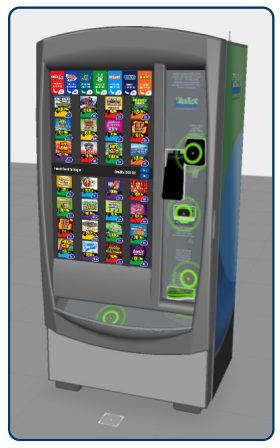
GameTouch 28 (GT28) |
Notes
Vuforia View® Application
This app is free, lightweight, and available in all app stores. Touch the button below to navigate directly to the View app in the app store for installation.
Launching the AR Experience
The AR experience can be accessed by pressing the Rhode Island AR Experience button below.
Installing the Application
-
Download the free Vuforia View® app onto your mobile device using the applicable QR code, or click the link below the code for either the iPhone or Andriod device.
 |
 |
Note: if necessary, you can also search your app store for Vuforia View®
- Once the app is downloaded, use the Vuforia View® app and scan the QR code, or click the link below to launch the AR experience.
|
|
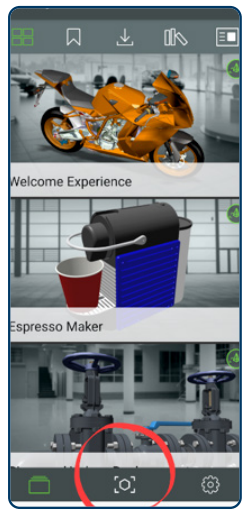 |

- The experience runs automatically after touching the button. The experience should save onto your device’s View app. Access the experience by pressing the button each time to start.

- Continue with AR GameTouch 28 - Viewing the Experience for information on using the application.