GT20 System Overview
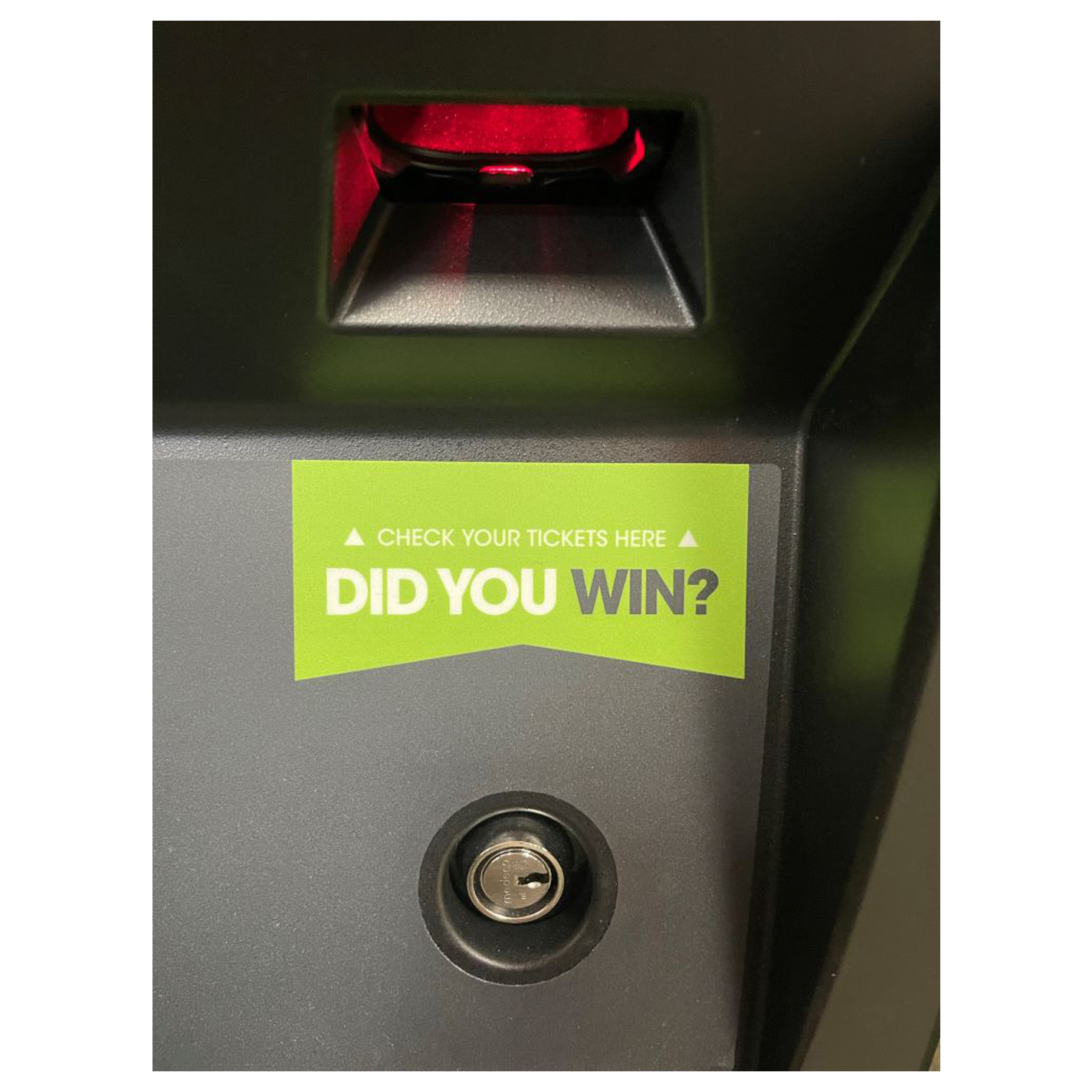
The Game Touch terminal acts as both a Scratch Vending Machine to distribute Scratch Tickets and operates in Self-Service Terminal to perform Draw Game functions. The barcode reader can be used by players to scan their scratch and draw game tickets to see if they are winners.
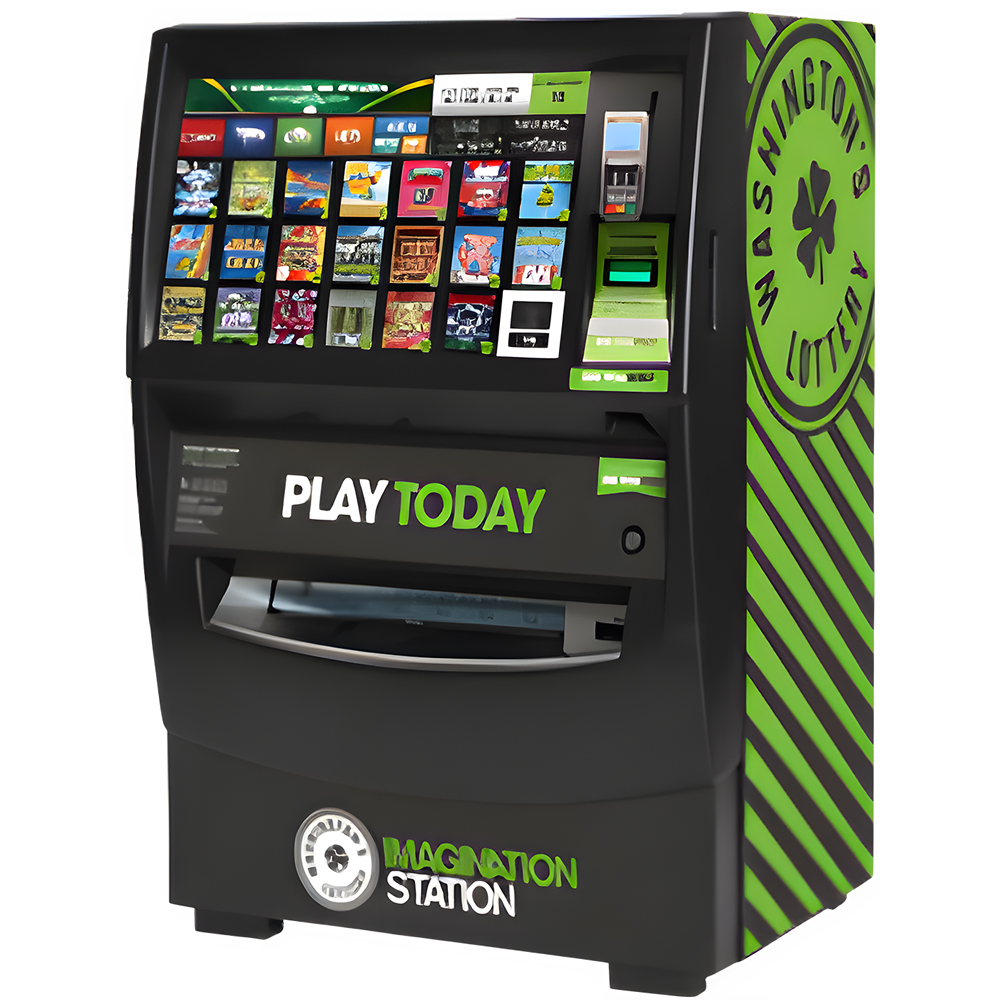
Game Touch 20 External View
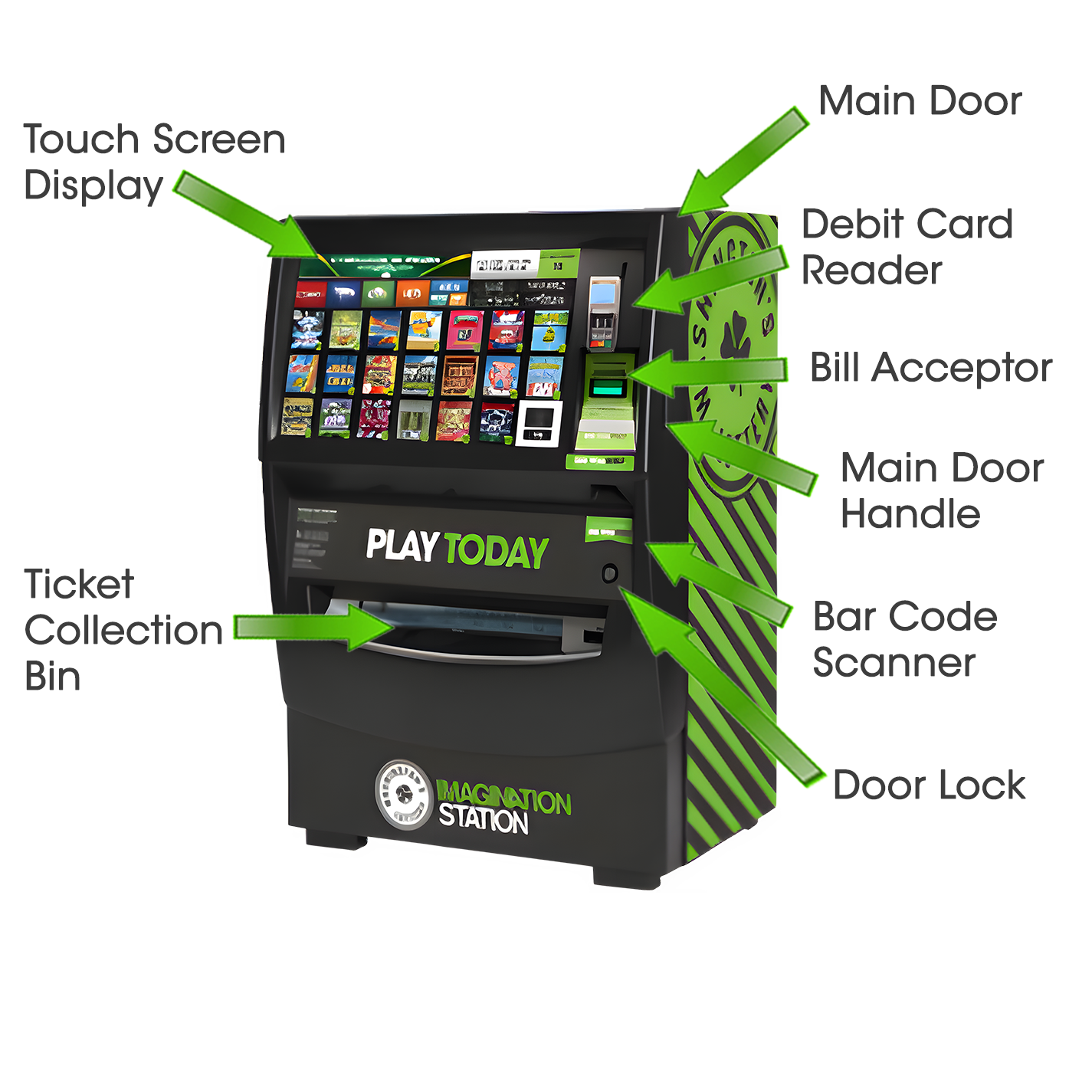
- The GT20 does not have a playslip reader.
Opening the Main Door
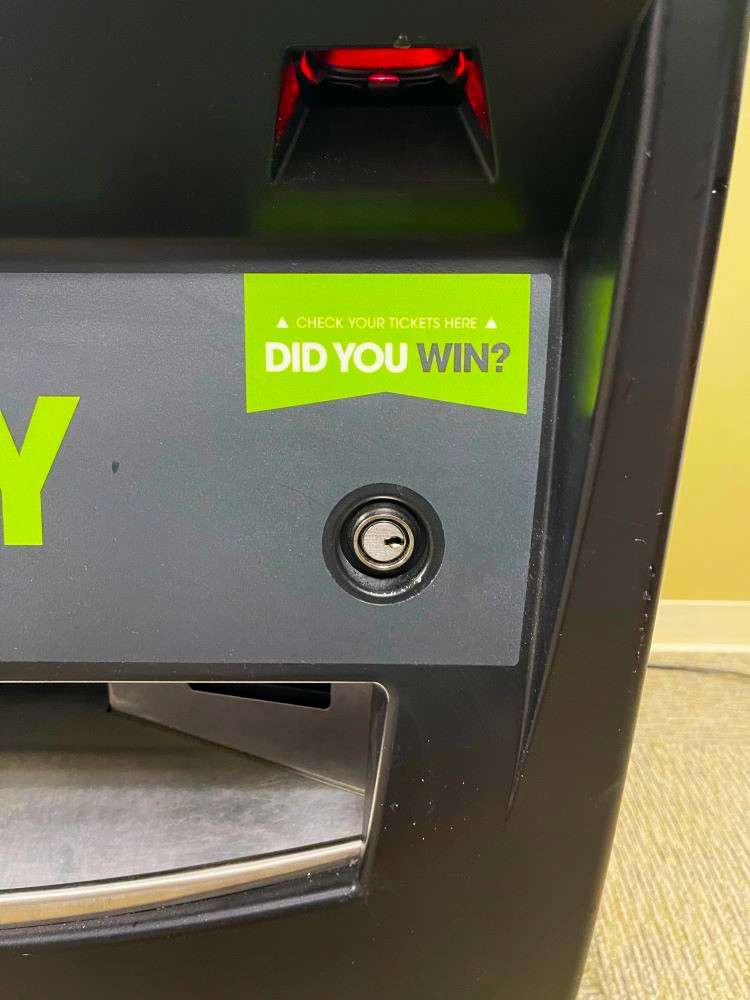
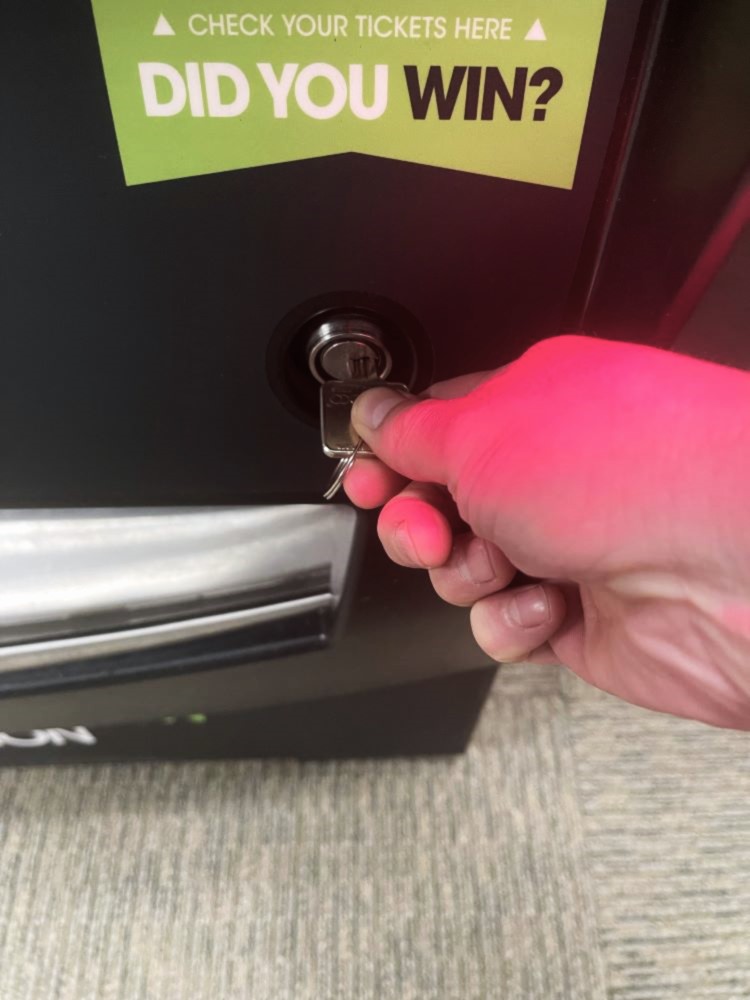
Insert the Main Door (MD) key into the main door lock located on the front of the machine, below the barcode scanner.
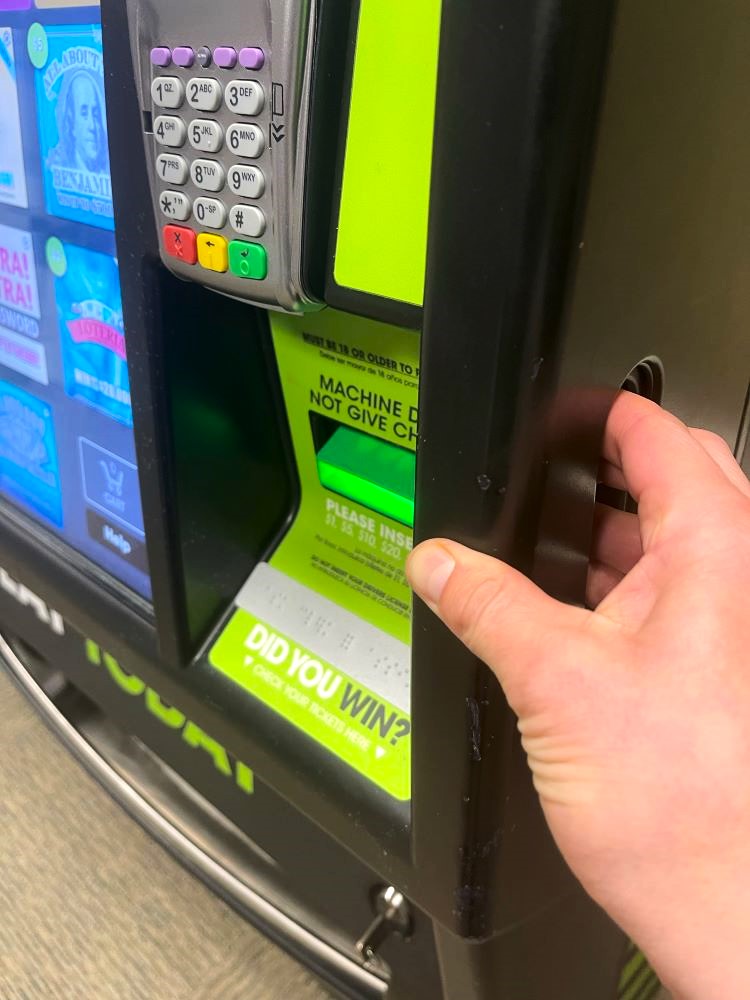
To open the door, pull up on the lever located on the right side of the door.
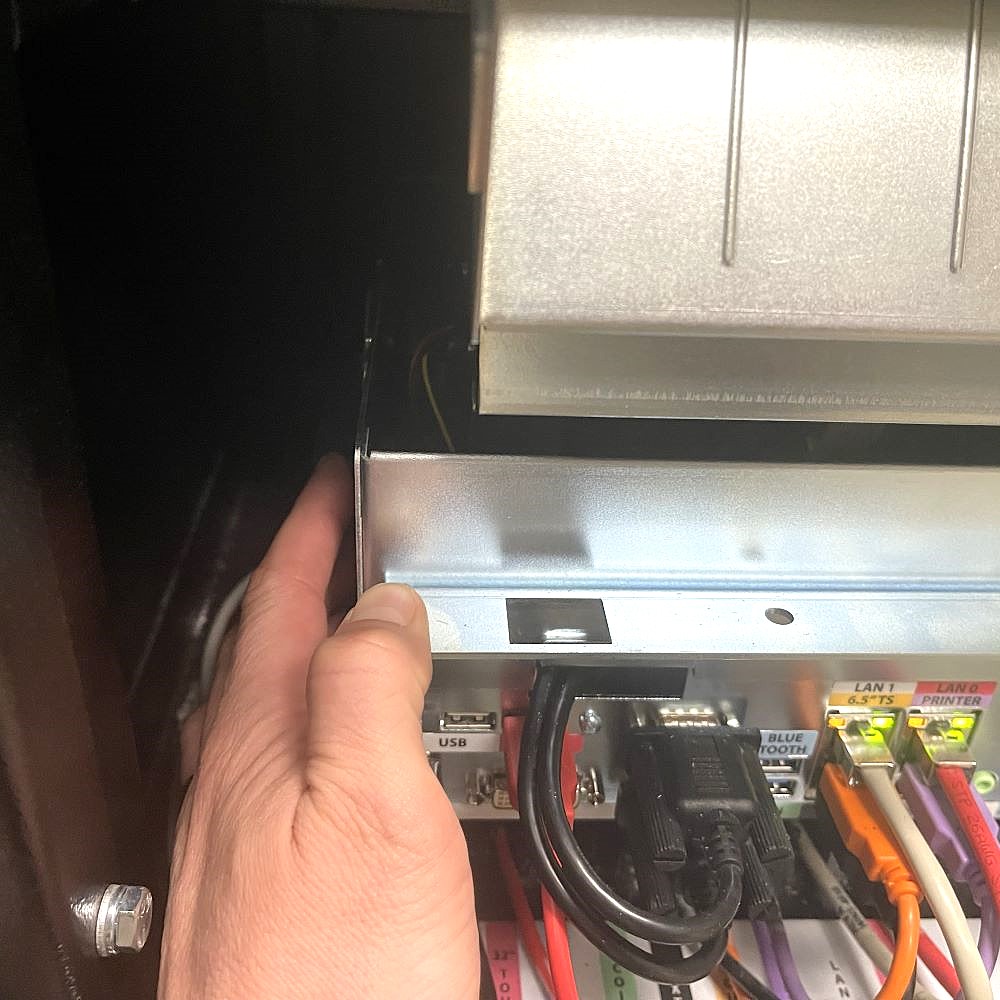
An audible alarm begins soon after the main door is opened. To silence the alarm, the Retailer must press the override button on the side of the terminal board at the bottom of the machine or sign-on to the terminal.
Retailer Sign-In
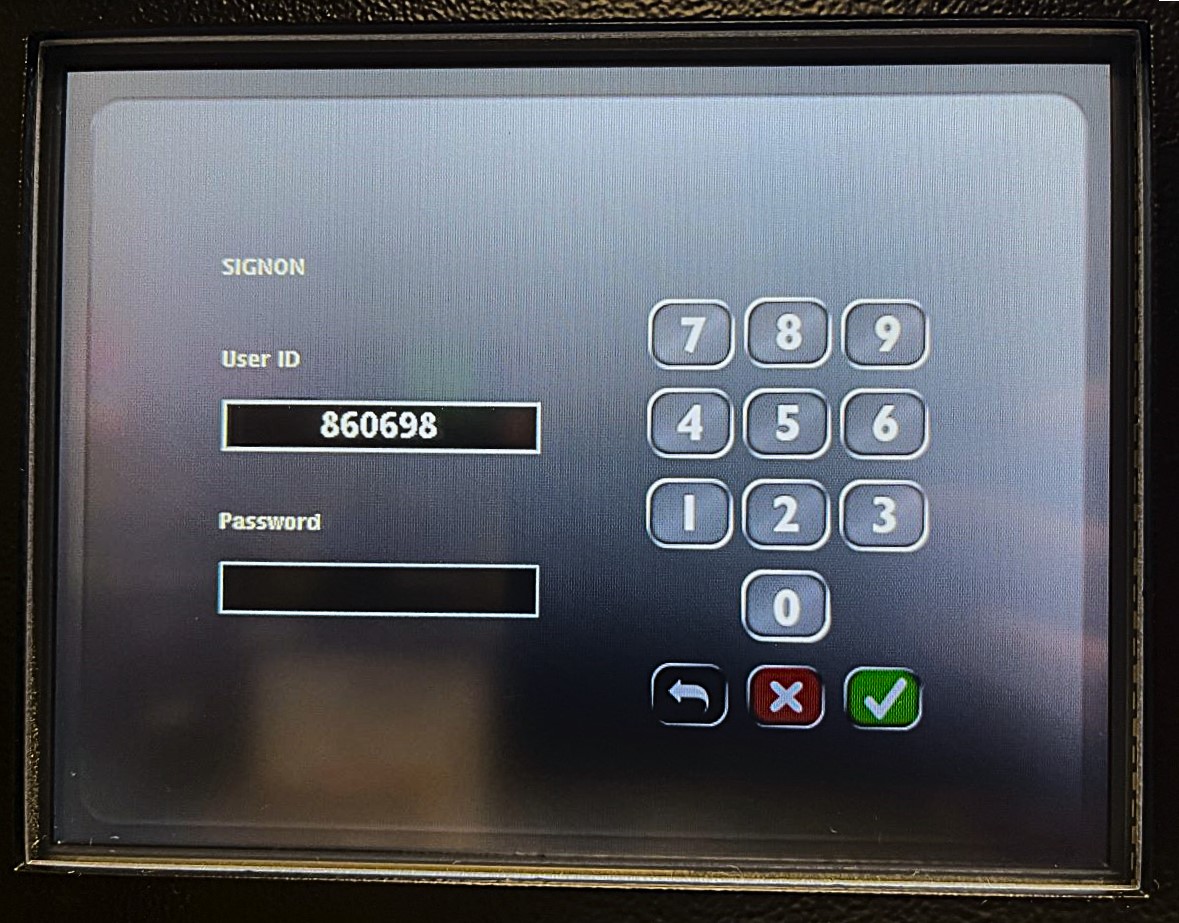
After opening the Game Touch G20 terminal Main Door, the Retailer terminal display prompts retailers to sign-in.
- Enter 6-digit Username and 4-digit Password. Touch the GREEN CHECKMARK.
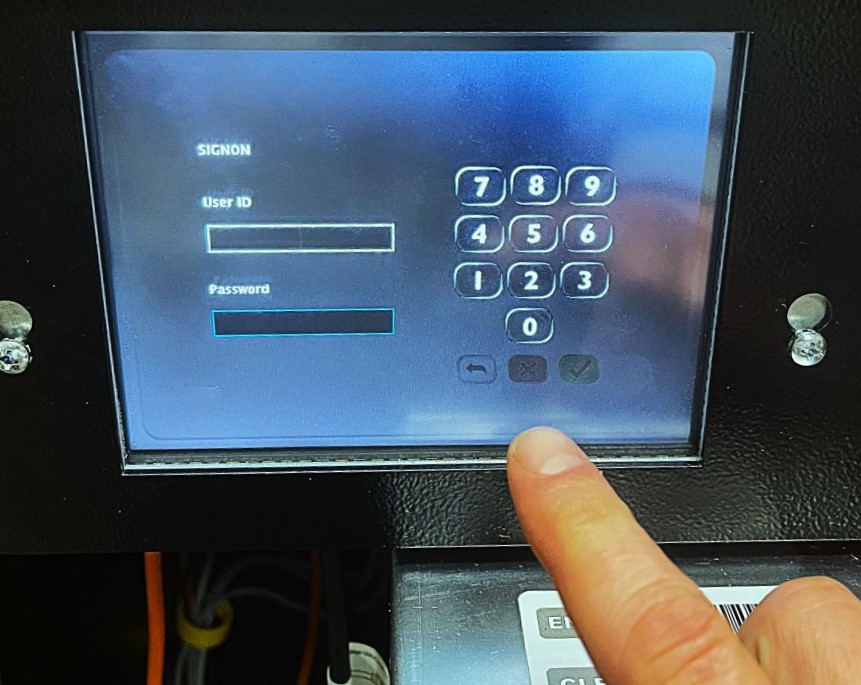
After a successful Sign-In, the Manager Functions Menu will display.
Manager Functions
The Game Touch Home Screen, or Manager Functions Menu, is available once you are signed in. This menu provides access to the terminal management functions.
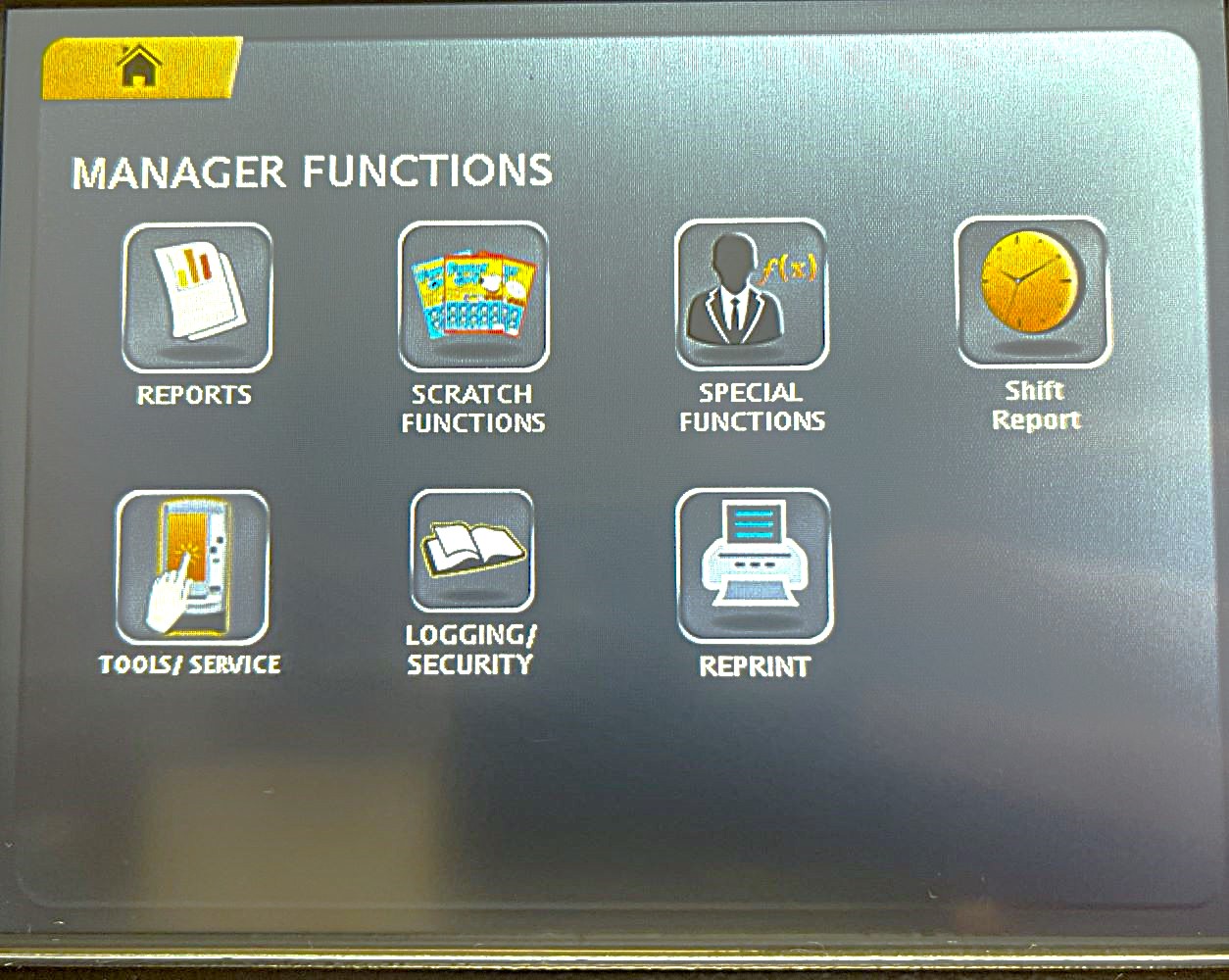
- Access this menu from any of the administrative screens by touching the HOME button.
GT20 System Overview
Barcode Reader
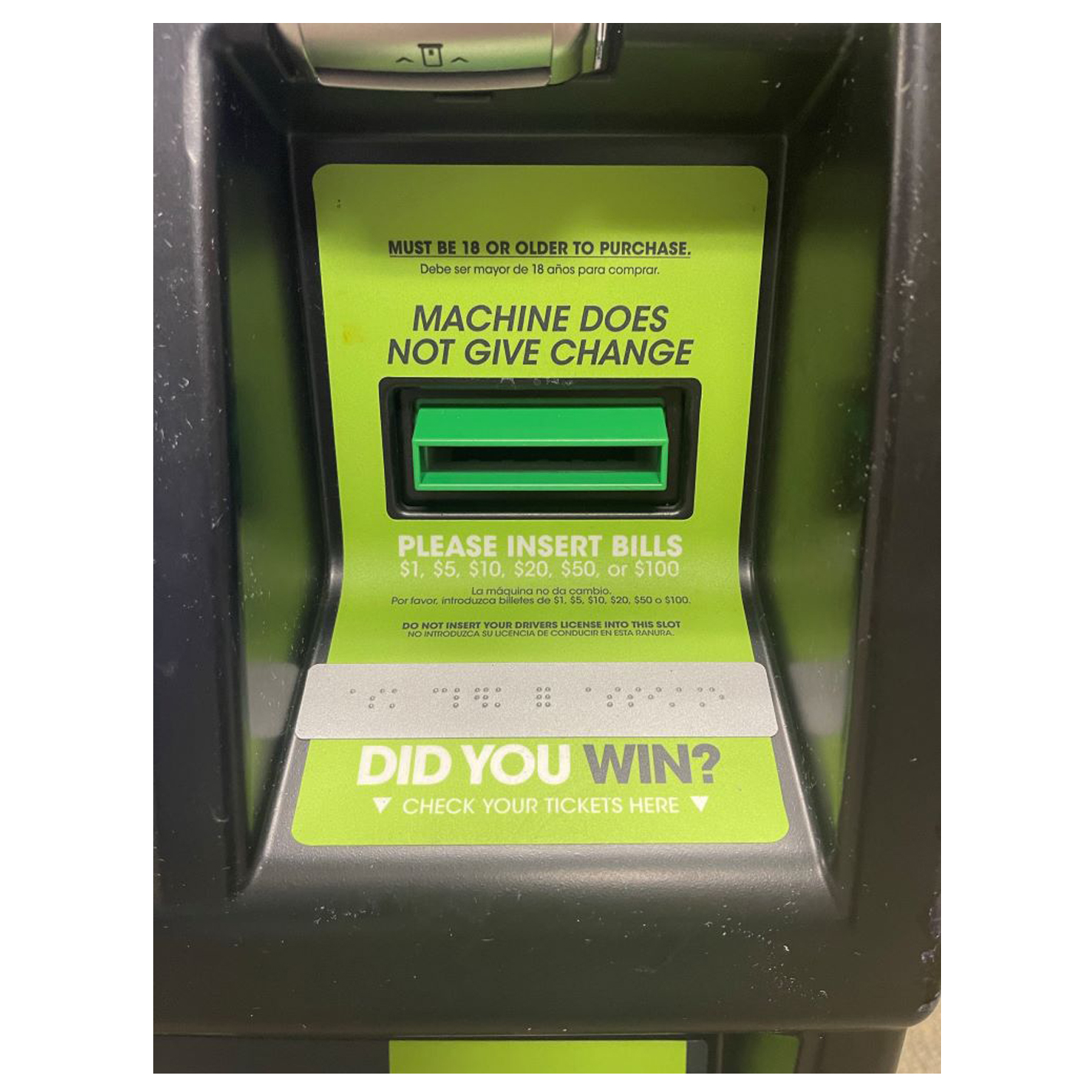
JCM Bill Acceptor
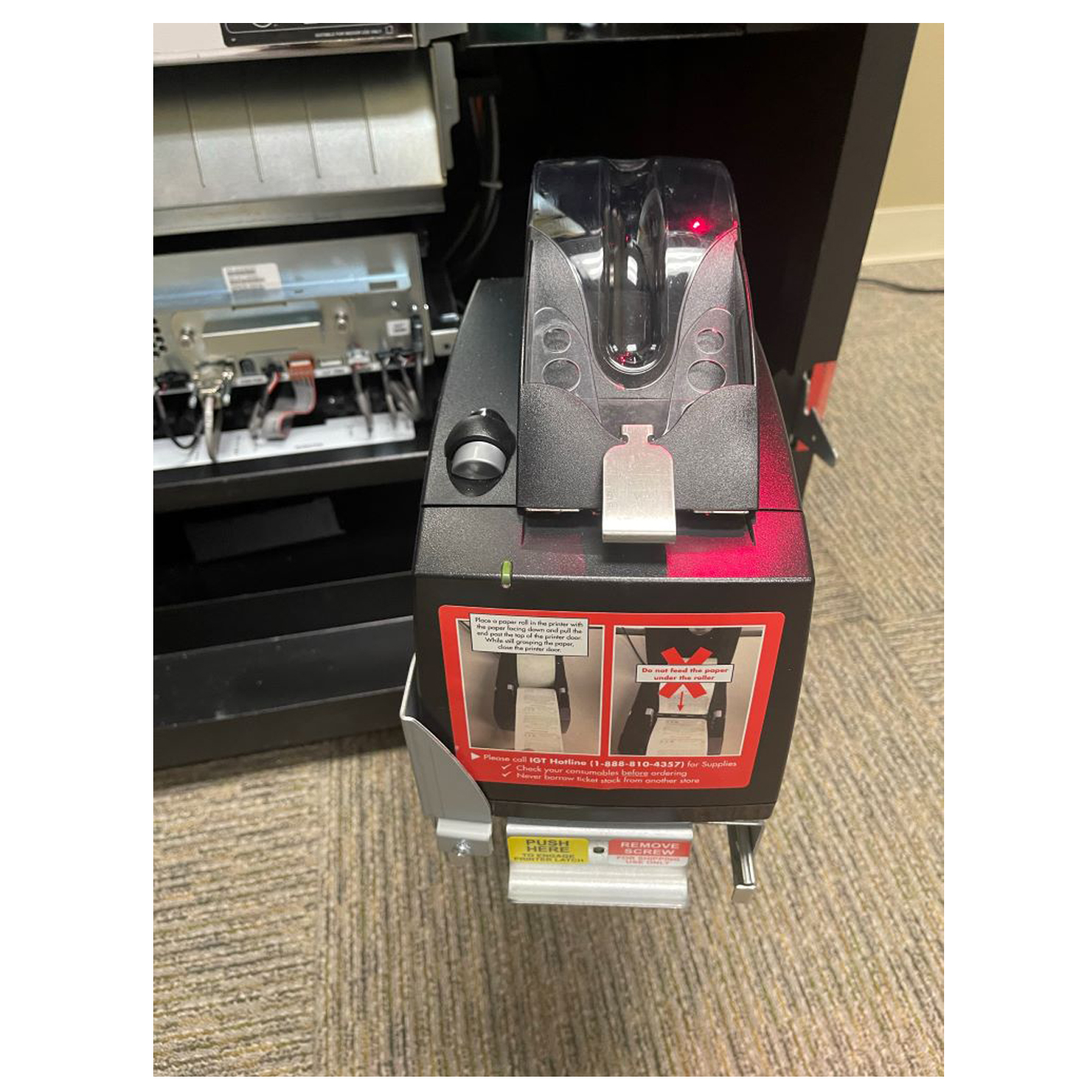
Printer
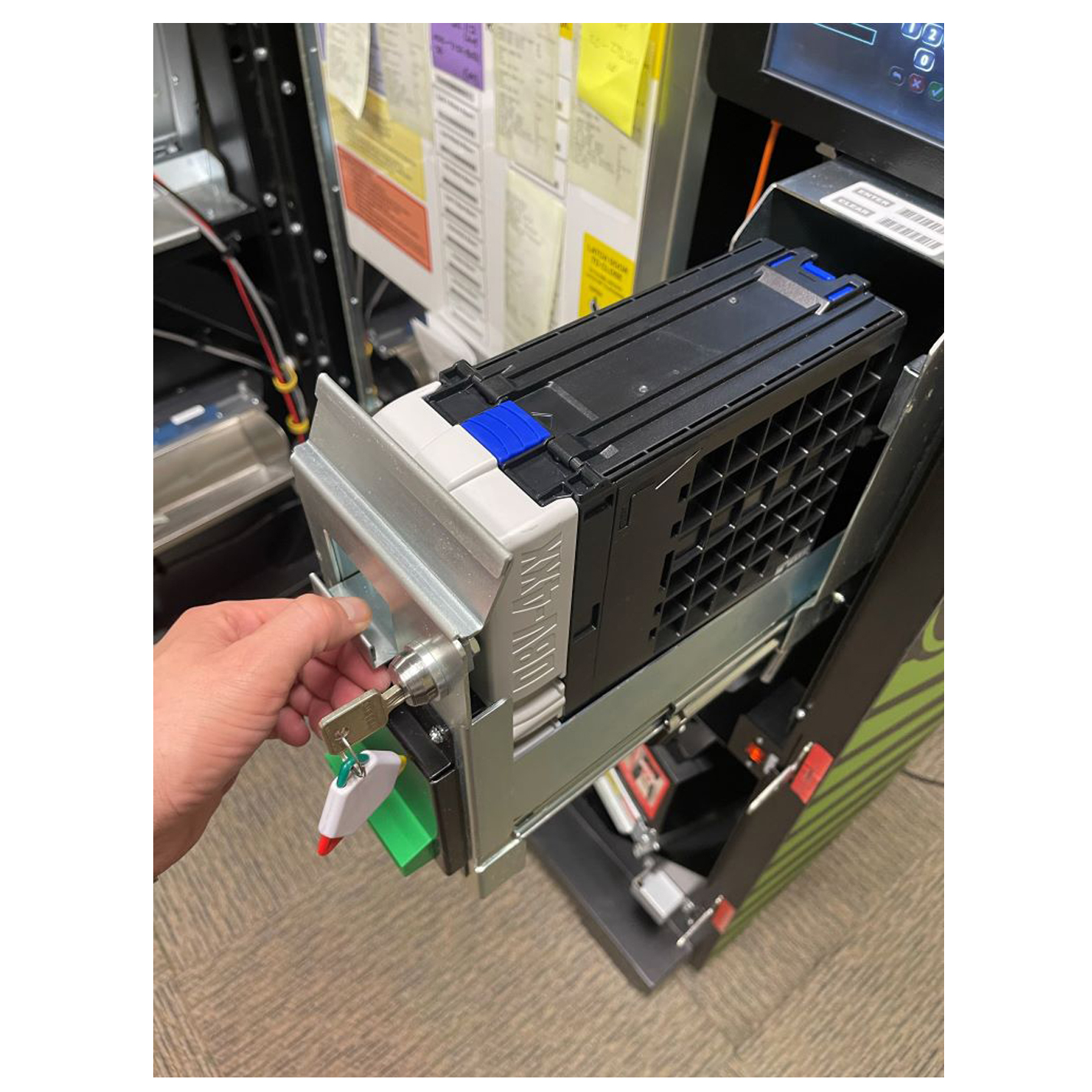
Cashbox
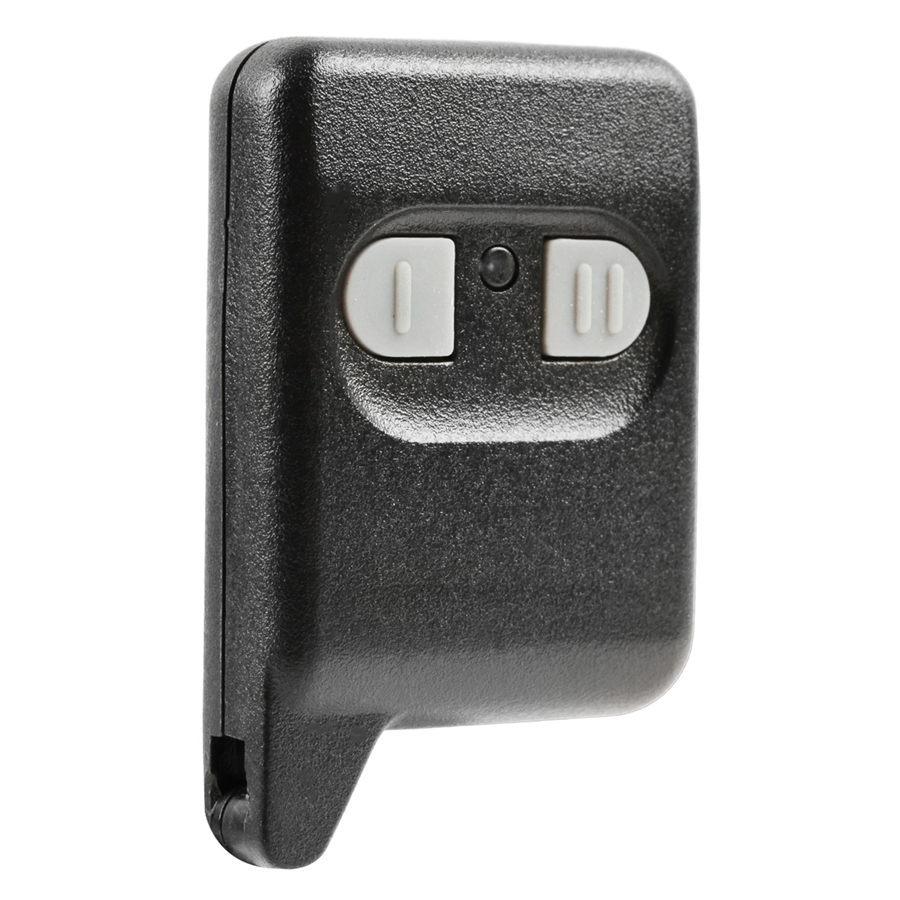
Keyfob Remote

GT20 Player
Support
Key Fob Remote Control
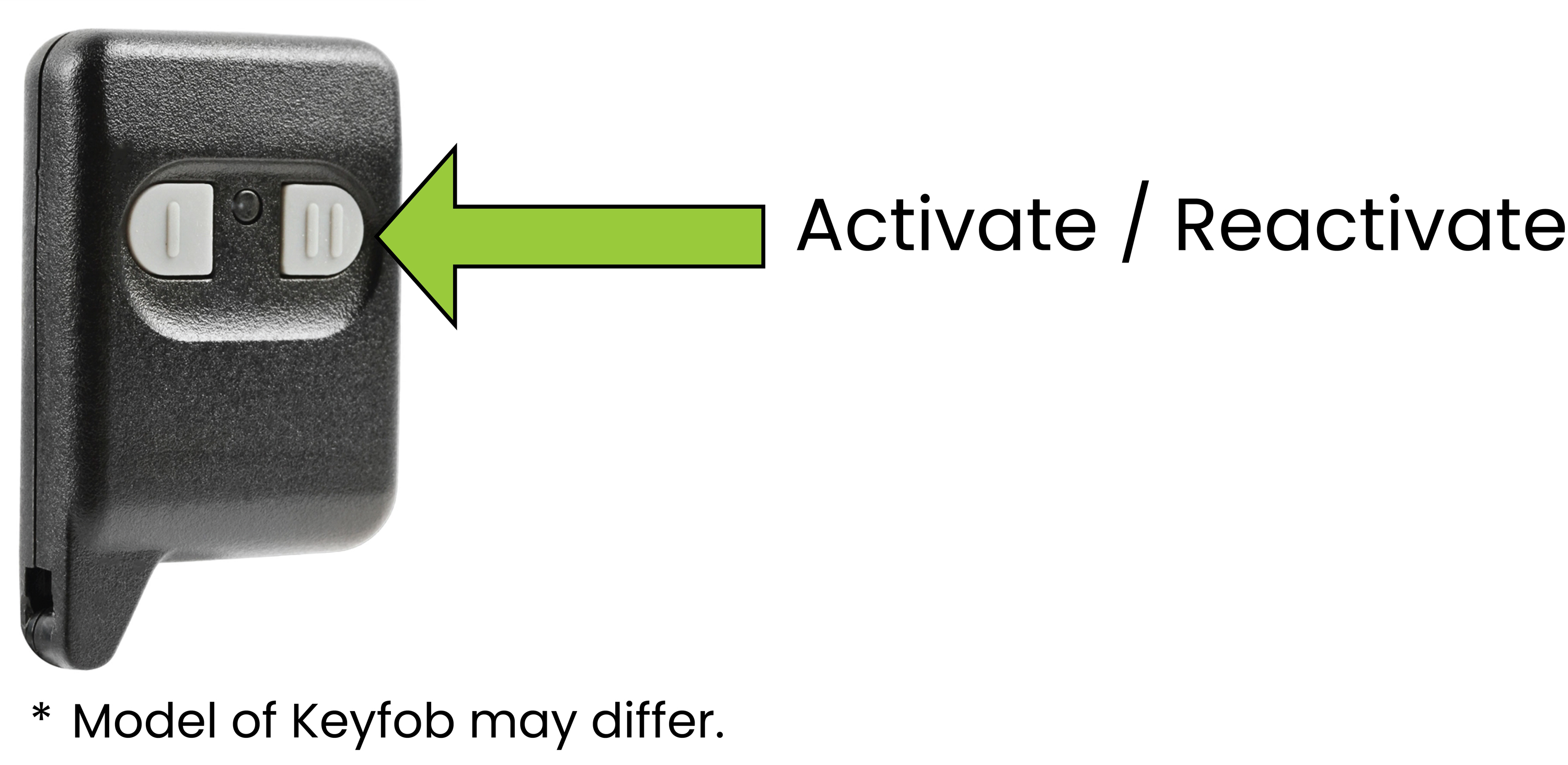
All Washington’s Lottery retailers with a Self-Service Terminals will receive a key fob remote control.
The key fob provides two system functions:
- Generate refund slip for remaining credits
- Age verification / Discourage underage use
Refunding Players with Remaining Credits
In some situations, a player may need to be reimbursed for credits remaining on the Self-Service Terminals. When this situation occurs, retailers can press the key fob button to deactivate the terminal machine.
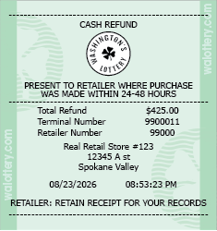
When the terminal is deactivated with credits remaining, a Cash Refund Slip will automatically be generated.
After the remaining credits have been cleared, the retailer can press the “I” button again to reactivate the terminal.
Age Verification / Discourage Underage Use
When a perceived underaged person is at a Self-Service terminal, retailers can disable the terminal by pressing the “I” button on the key fob. When the terminal is disabled, retailers will be able to confirm players age before pressing the “I” button again to reactivate.
NOTE:
- Retailers with more than one Game Touch terminal in one location can remotely control multiple machines with a single Keyfob.
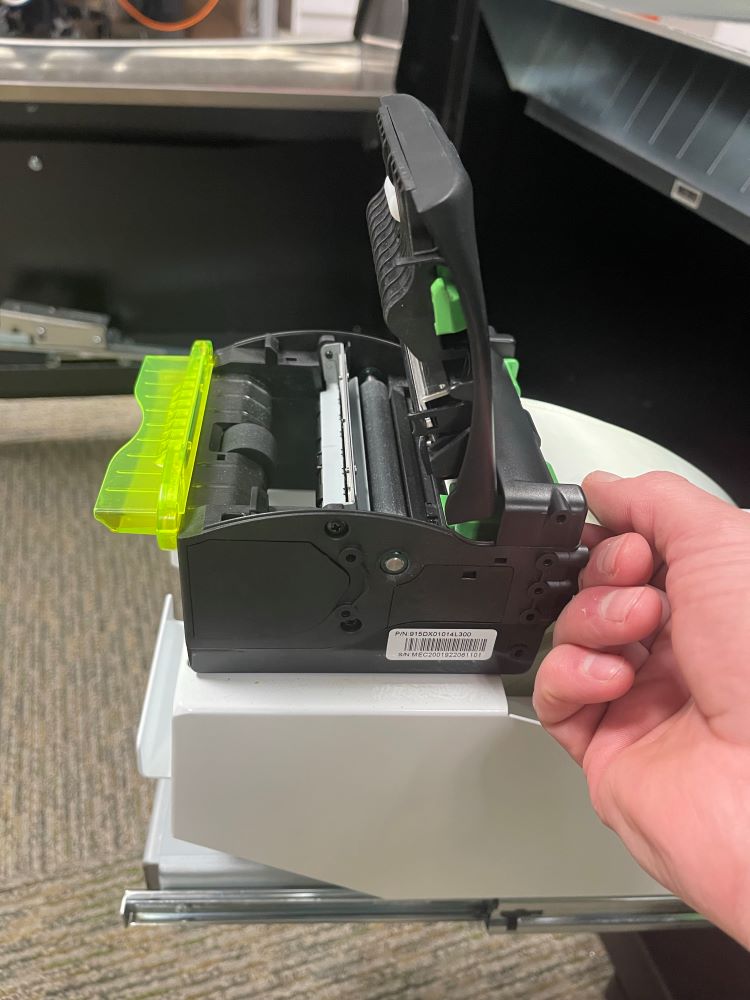
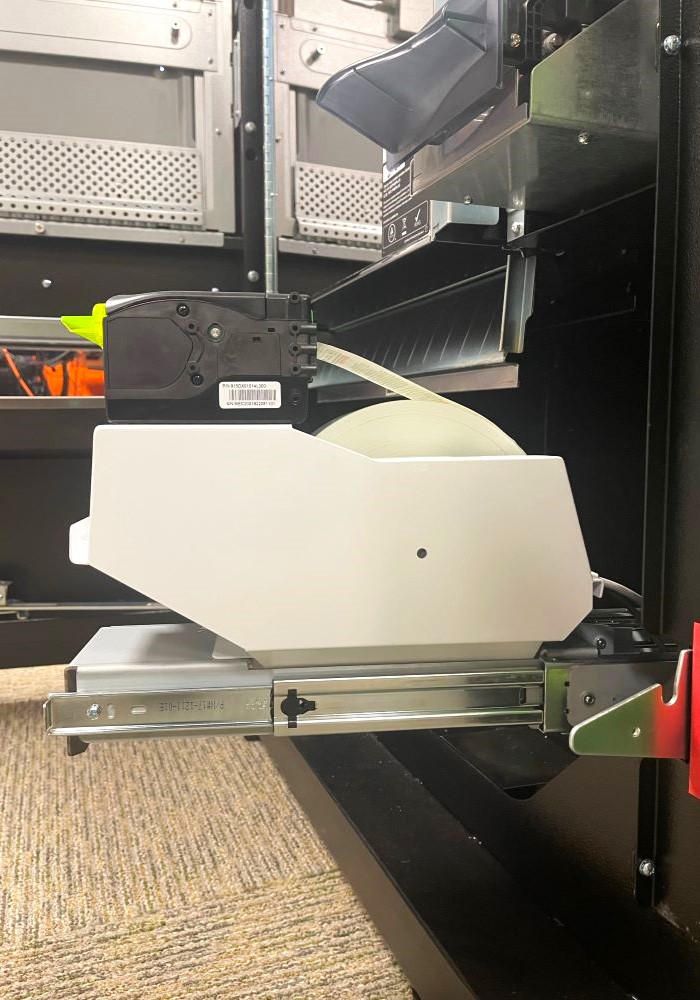
GT28C Printer - Change Paper
- Using the "Pull to Open" Handle, slide the Printer forward.
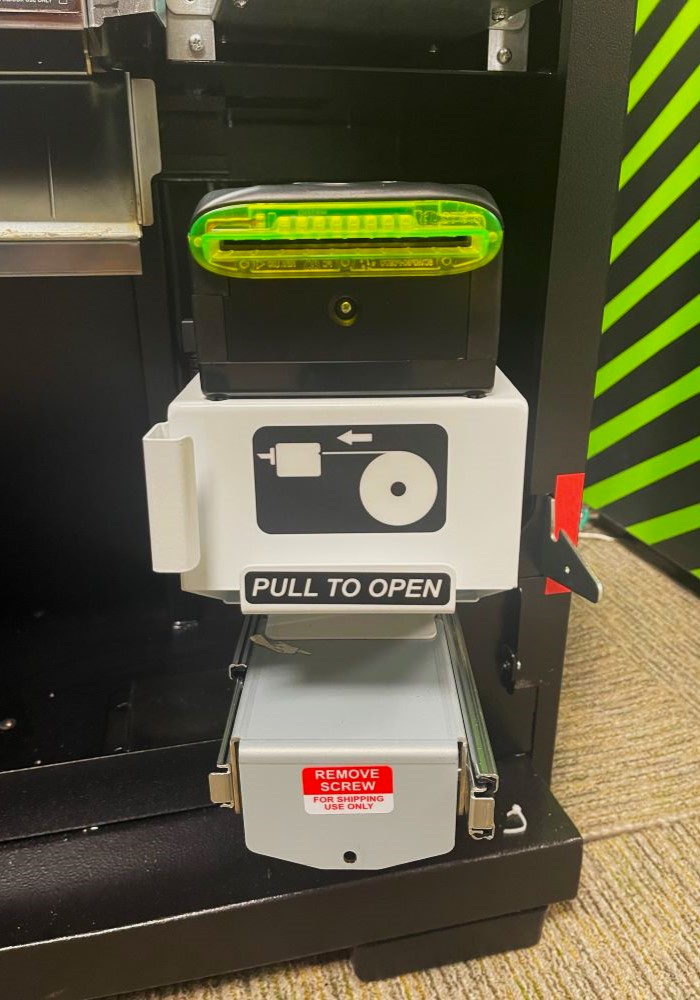
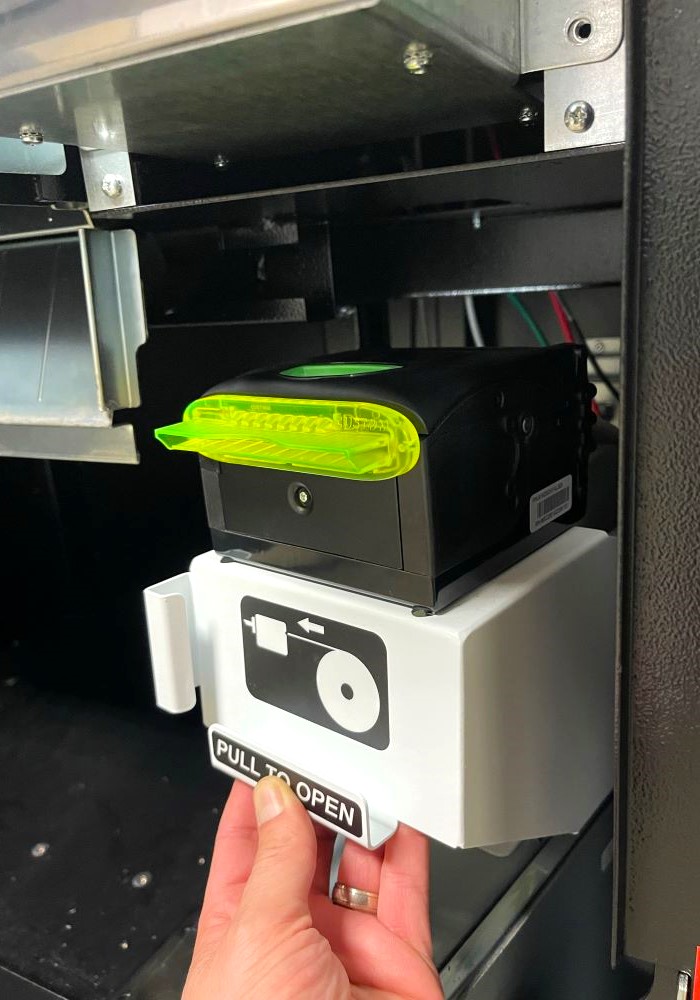
- Press Green button on top of printer to open.
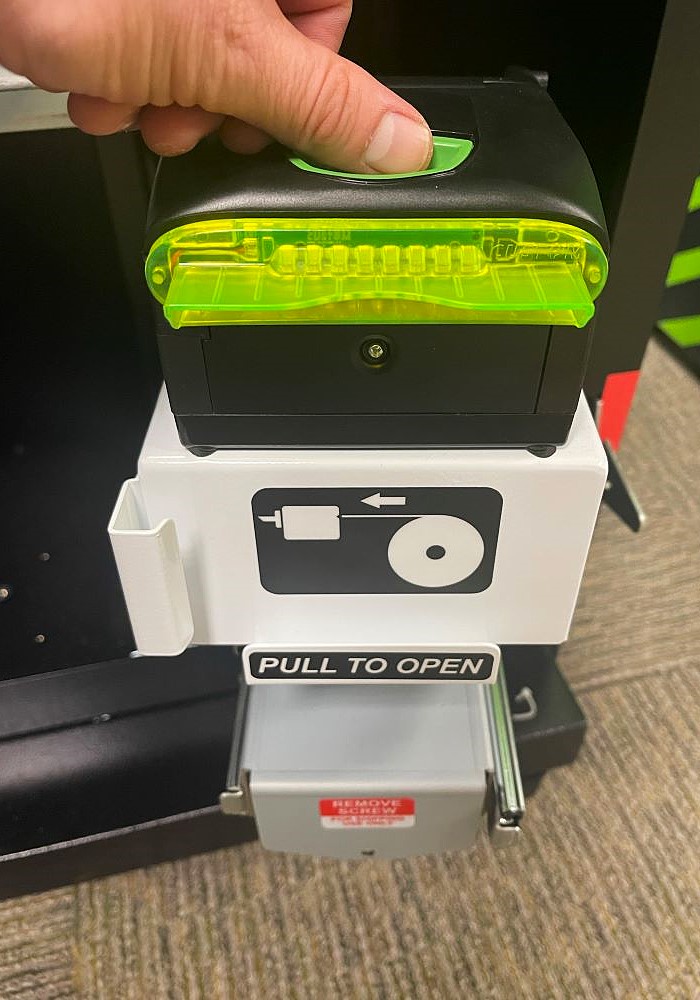
- Refill Paper Roll with new roll of Thermal Paper and place roll in Printer. Paper roll must be inserted so it feeds forward from the top of the paper roll.
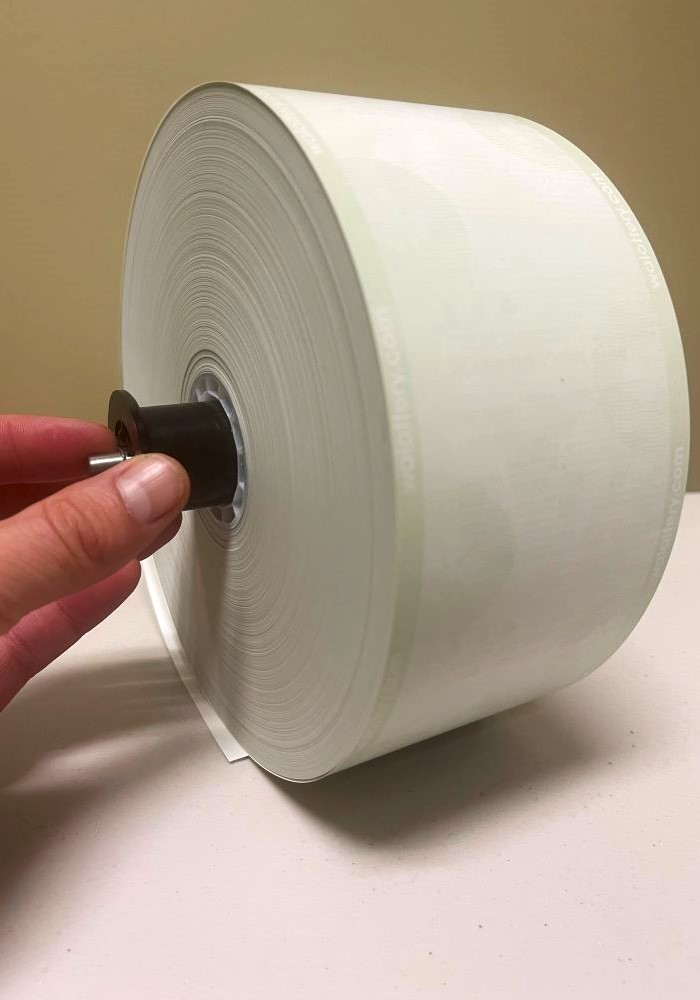
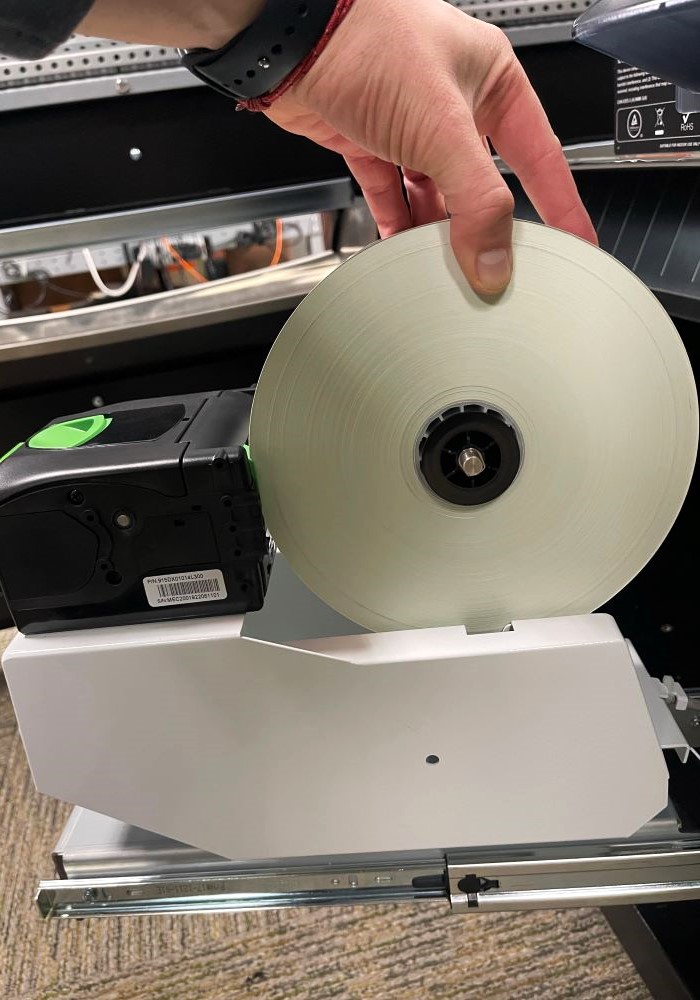
- Feed Paper through back and close Printer. The Printer will automatically begin to feed paper through.