
GT20 Cashbox
Note: Error message “SORRY THIS TERM IS NOT ABLE TO HANDLE ANY TRANSACTIONS” may appear when the cash box is full or is jammed.
- Open the bill acceptor door with the security key and pull forward.
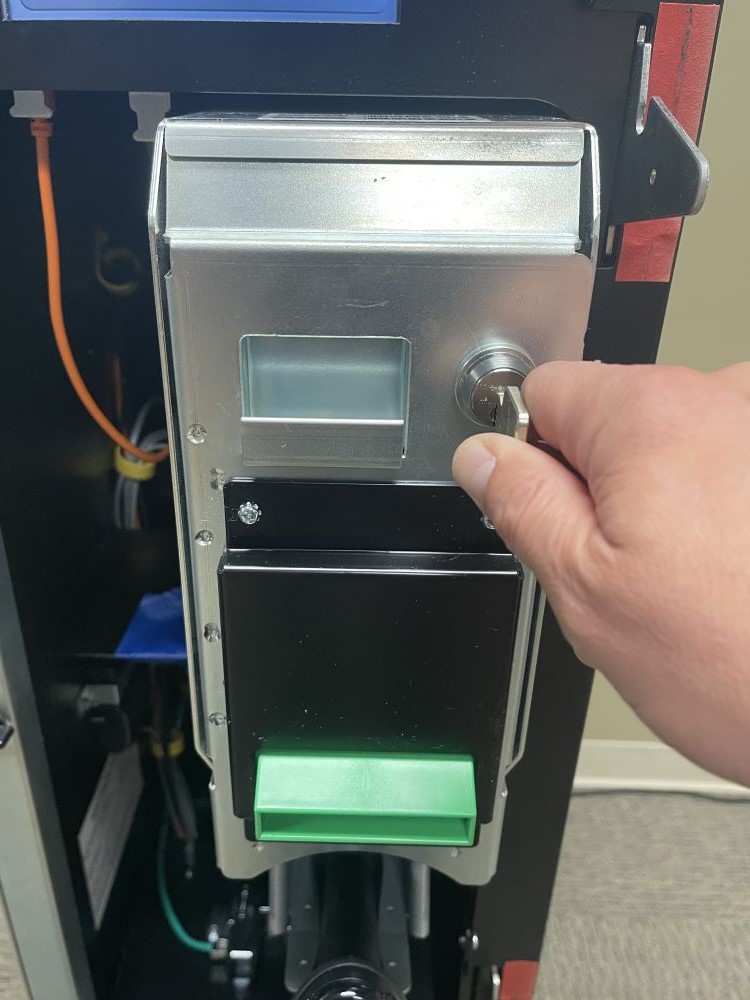
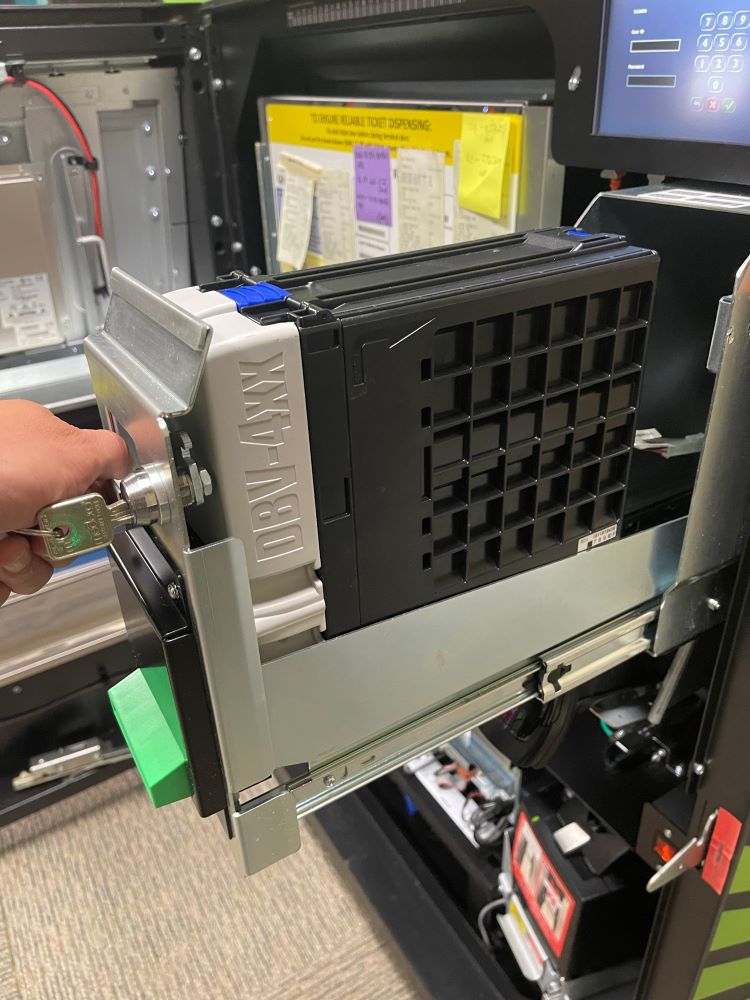
- Pull out the Cash Box by clicking the blue button and lifting up the cover.
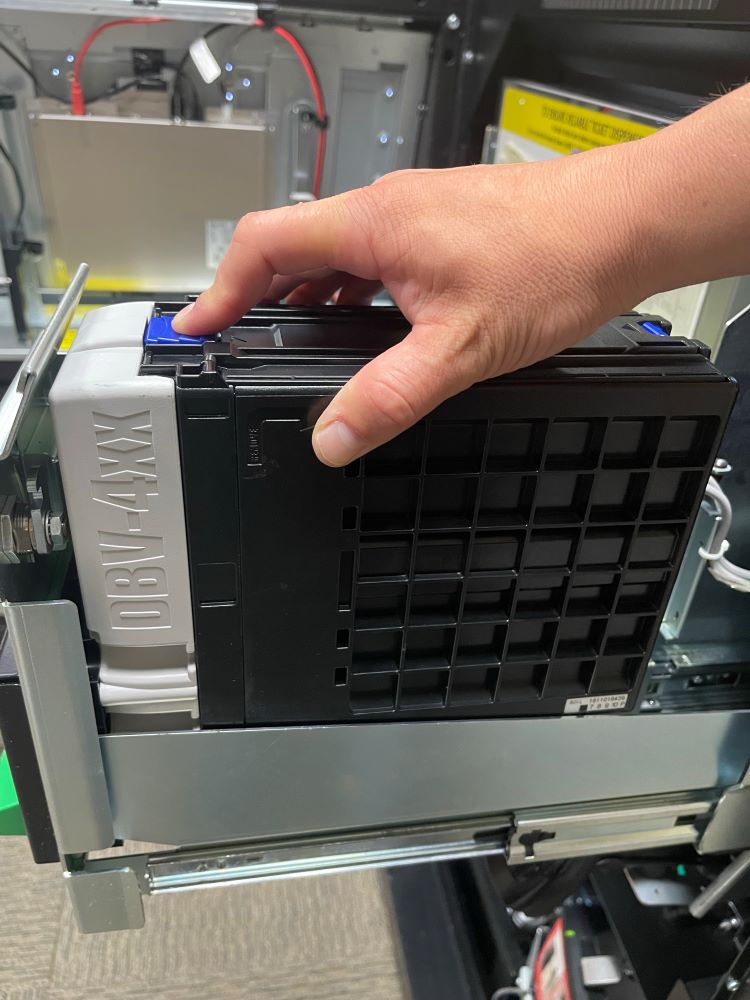
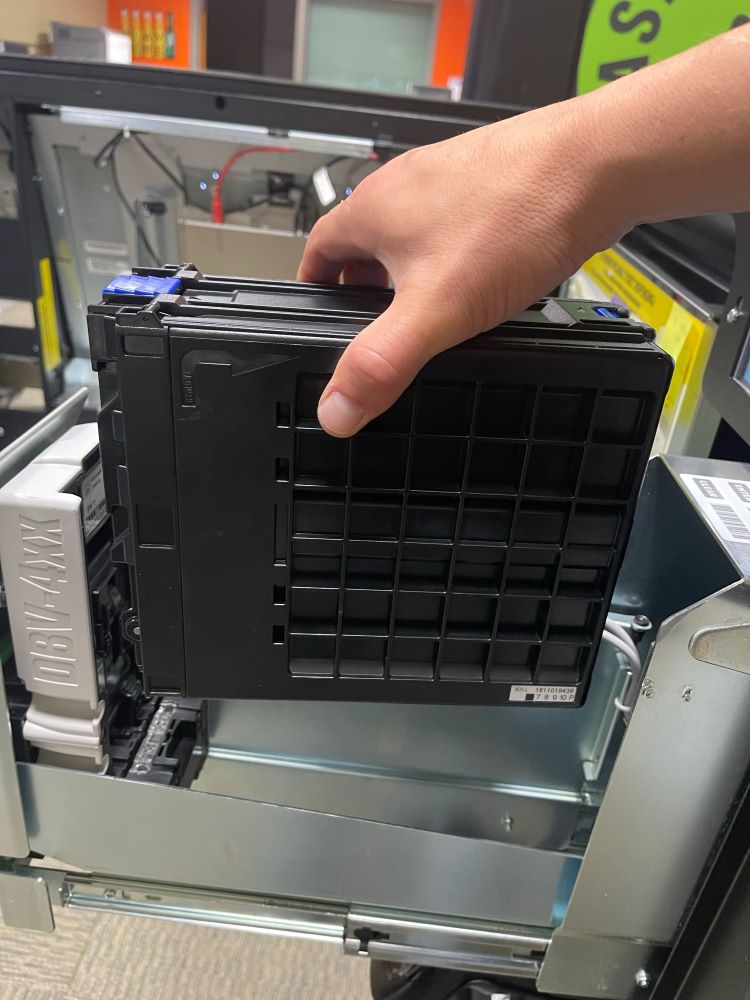
- To open the Cash Box, click the blue button and lift up the cover to the access the content.
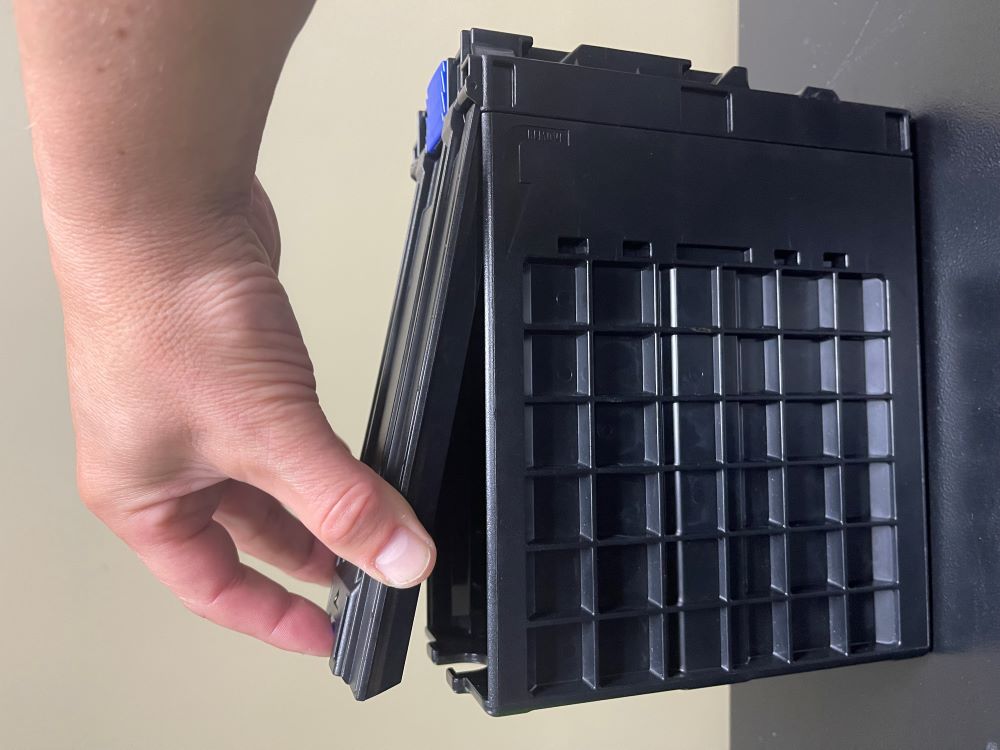
Note: the cash box opening is on the bottom of the cash box and may contain a separate lock.
-
Remove the cash from the cash box.
-
Replace the cash box.
GT Printer - Change Paper
- Using the Pull Handle, slide the Printer tray forward.
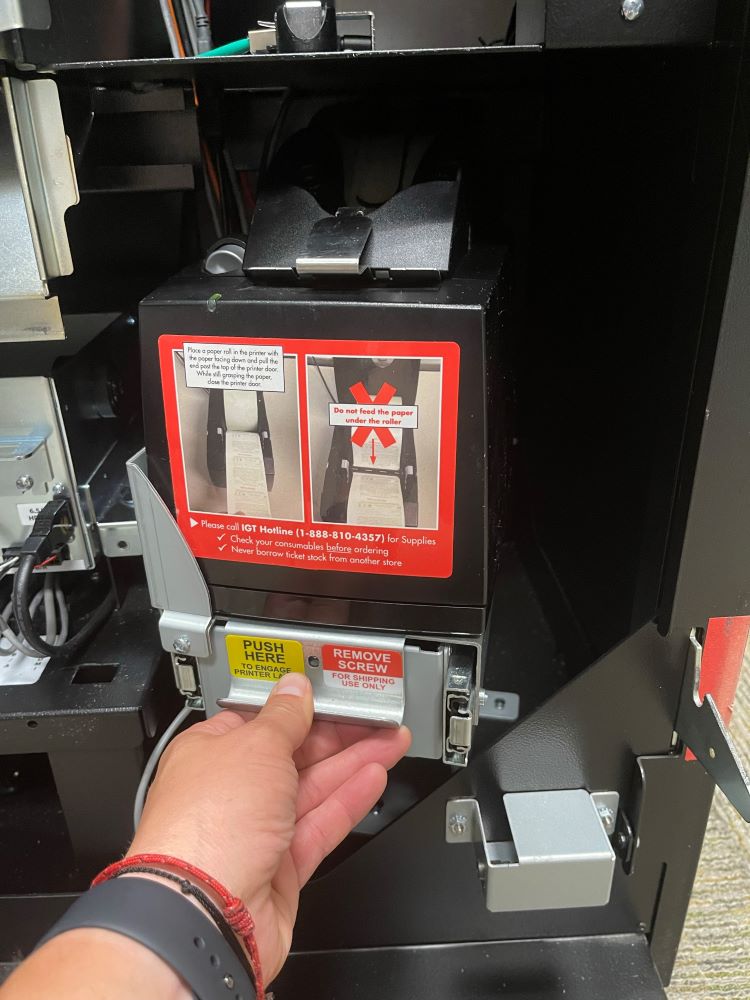
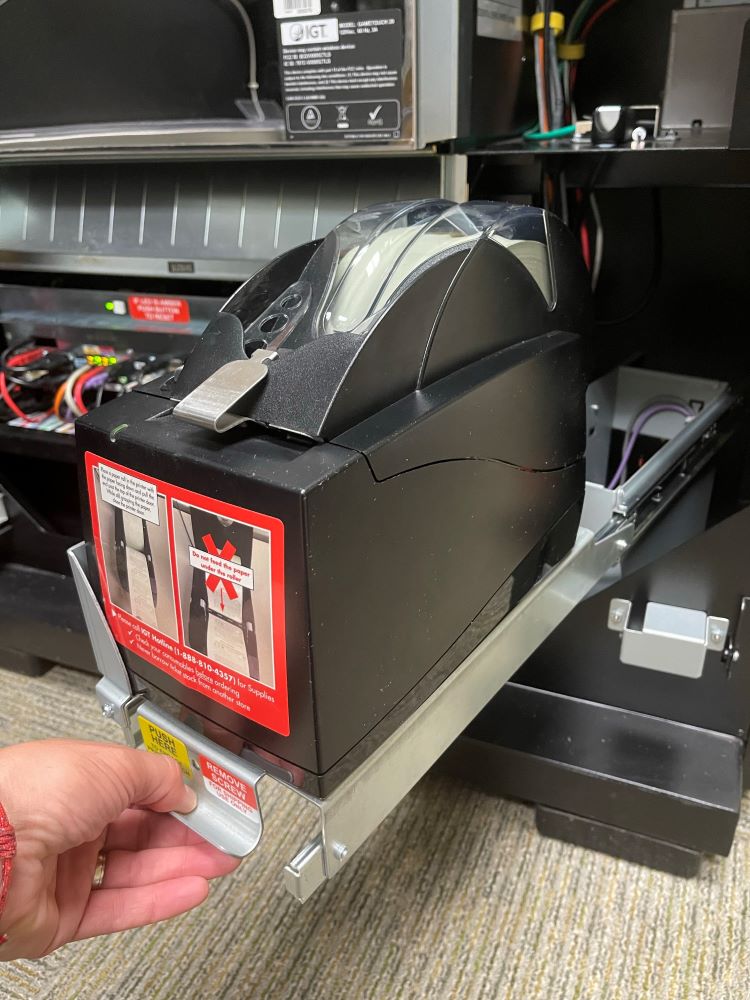
- Press Gray buttonon the top of printer and lift to open lid.
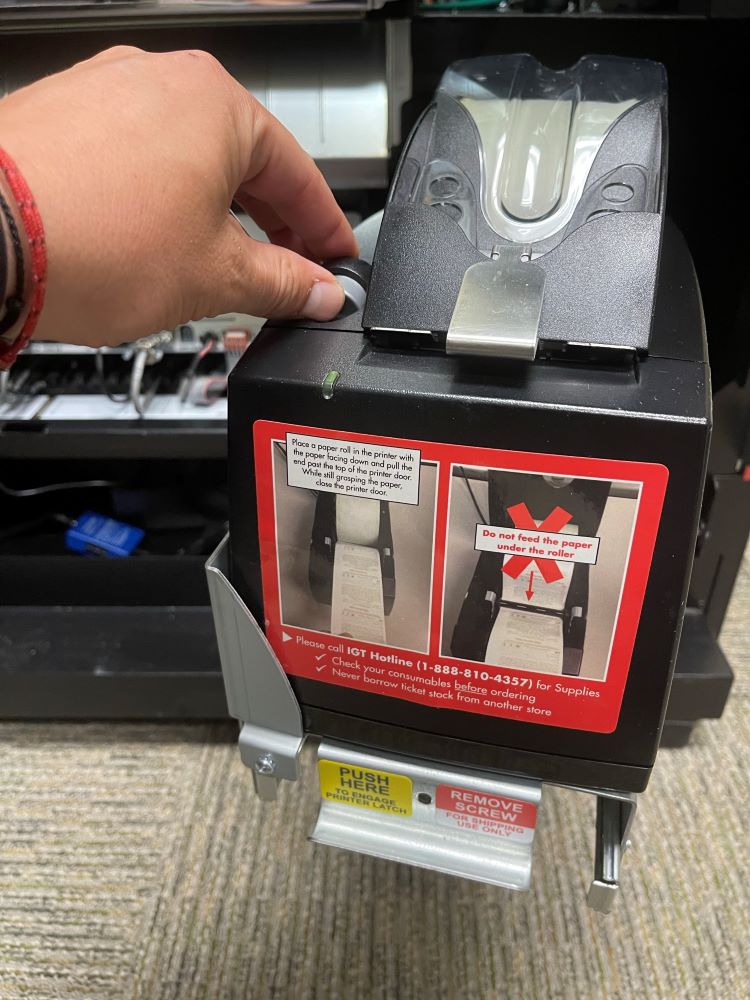
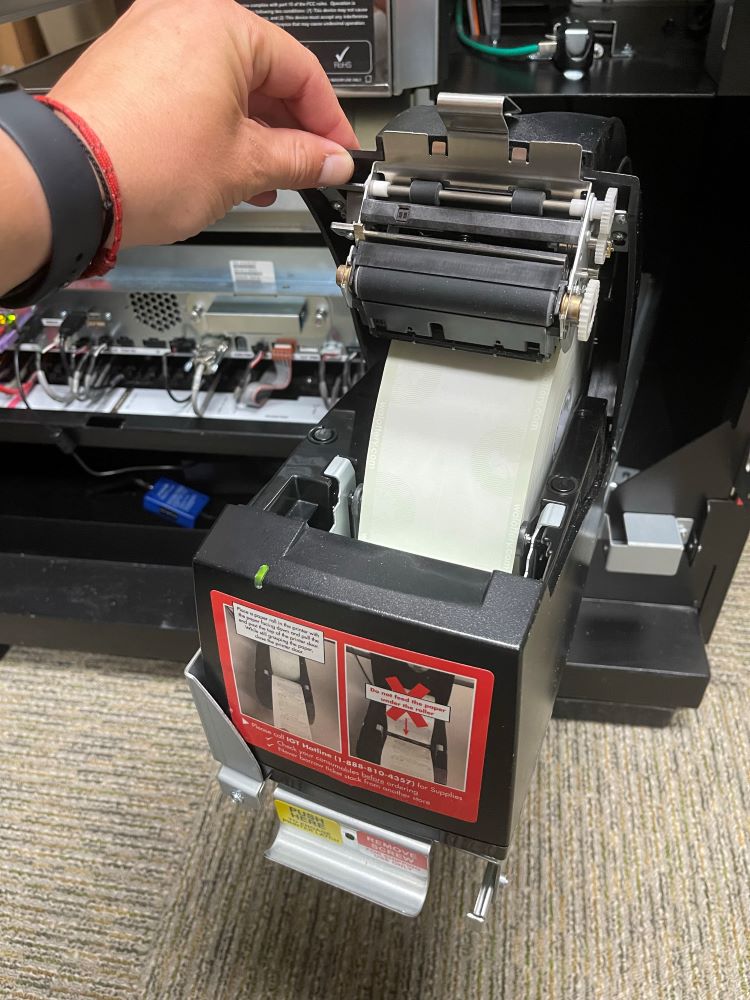
- Place Thermal Paper into Printer and pull paper up and Over the Roller.
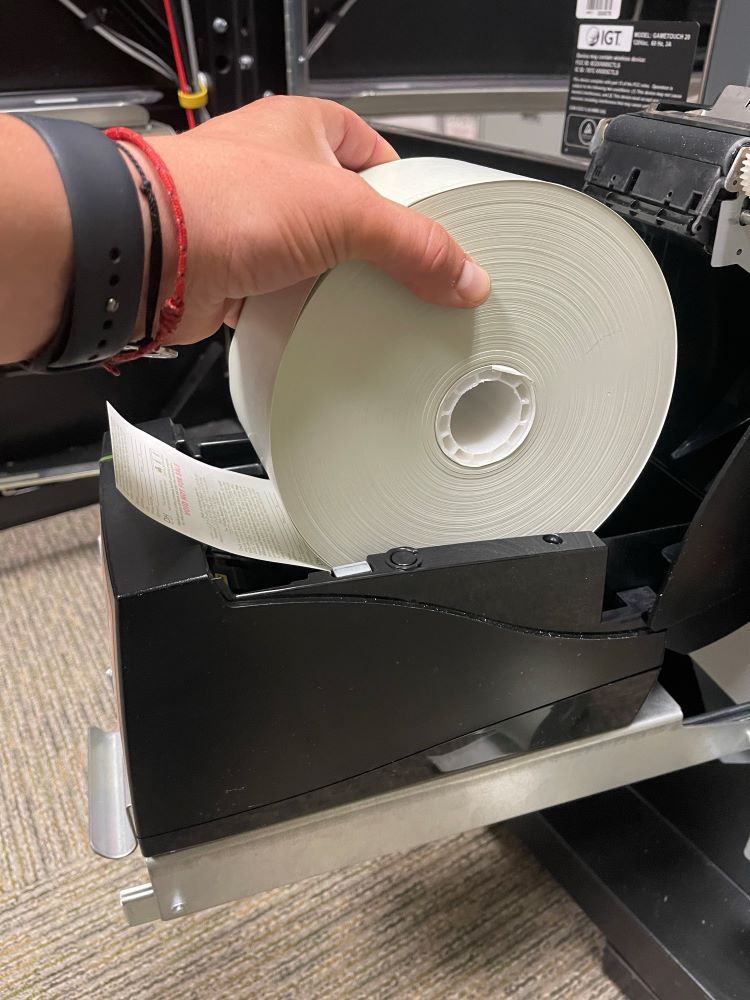
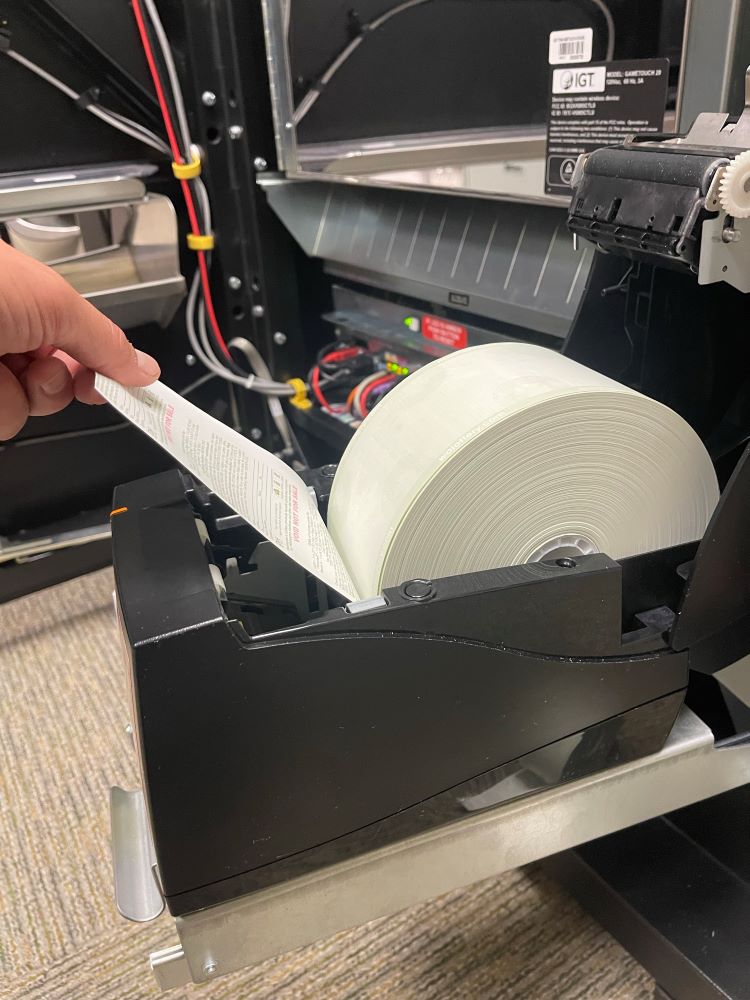
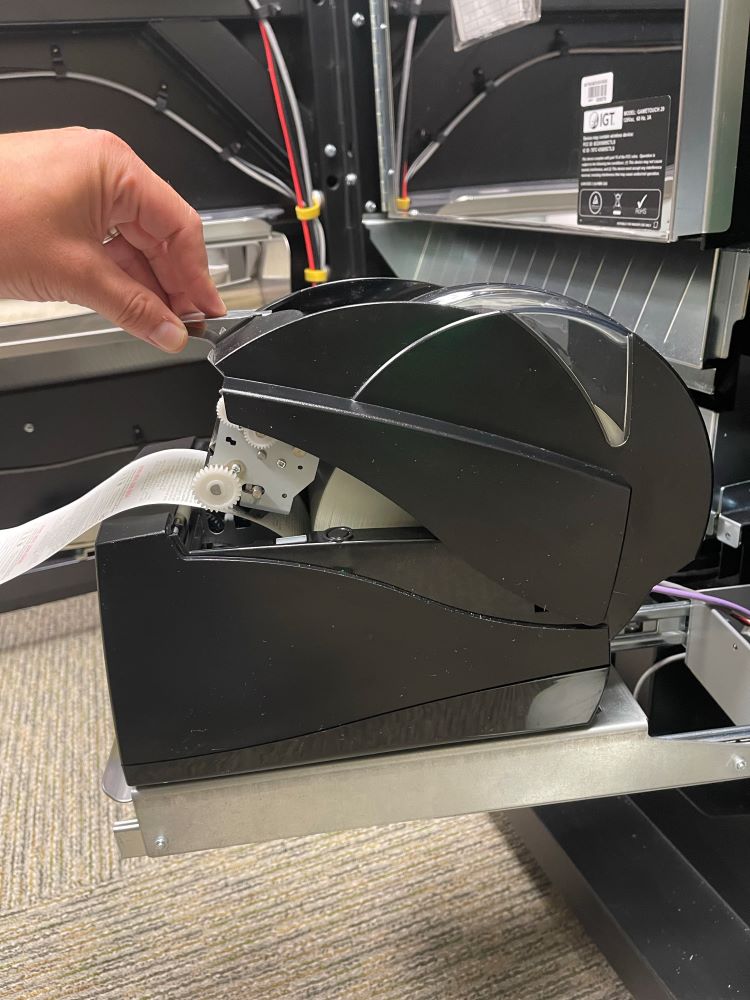
- Close Printer. The Printer will automatically begin to feed paper through once the lid is closed.
GT20 JCM Bill Acceptor
- Power off the terminal by toggling the highlighted on/off switch above the keypad to the down position (leave terminal off until below steps are completed).
- Open the bill acceptor door with the security key and tilt the assembly down.
- Remove the acceptor module by pushing up the silver latching and pulling straight out.
- Place your fingers on the black groove and chrome bar and squeeze to release the bill acceptor read head.
- Gently lift the read head from the bill acceptor - this allows the clearing of jammed bills.
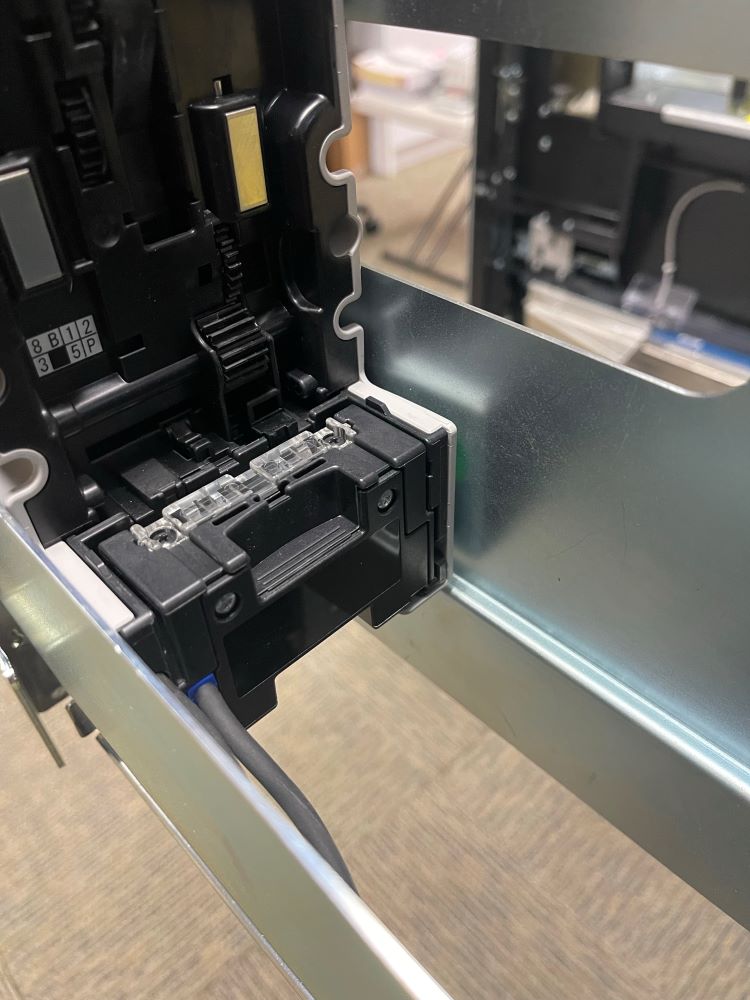
- After the bill acceptor has been cleared, gently slide it down into its locked position. If the bill acceptor is put into its proper position it will reset after 10 seconds.
- Power on terminal by toggling the on/off switch above the keypad to the up position.
Ticket Validation: Redemptions & Reinvestment
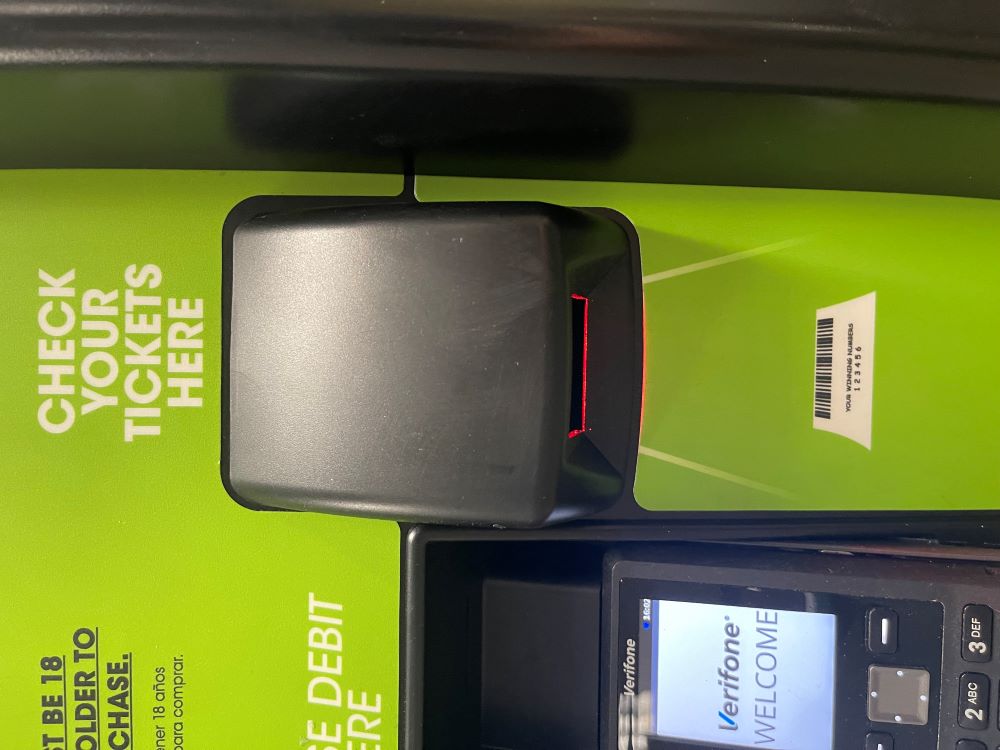
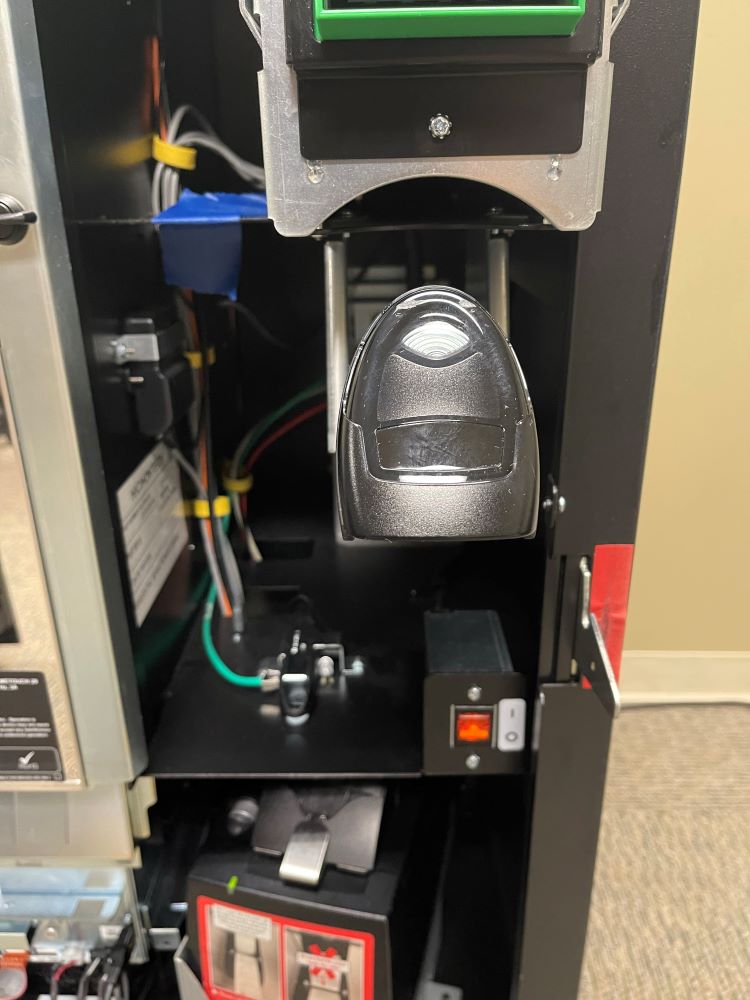
Players can verify a winning or non-winning ticket by using the Self-Service Terminal’s Barcode Scanner.
Winning Tickets
When a Player scans a winning ticket, a window will appear asking if they’d like to reinvest their winnings as credits to be played immediately on the machine.
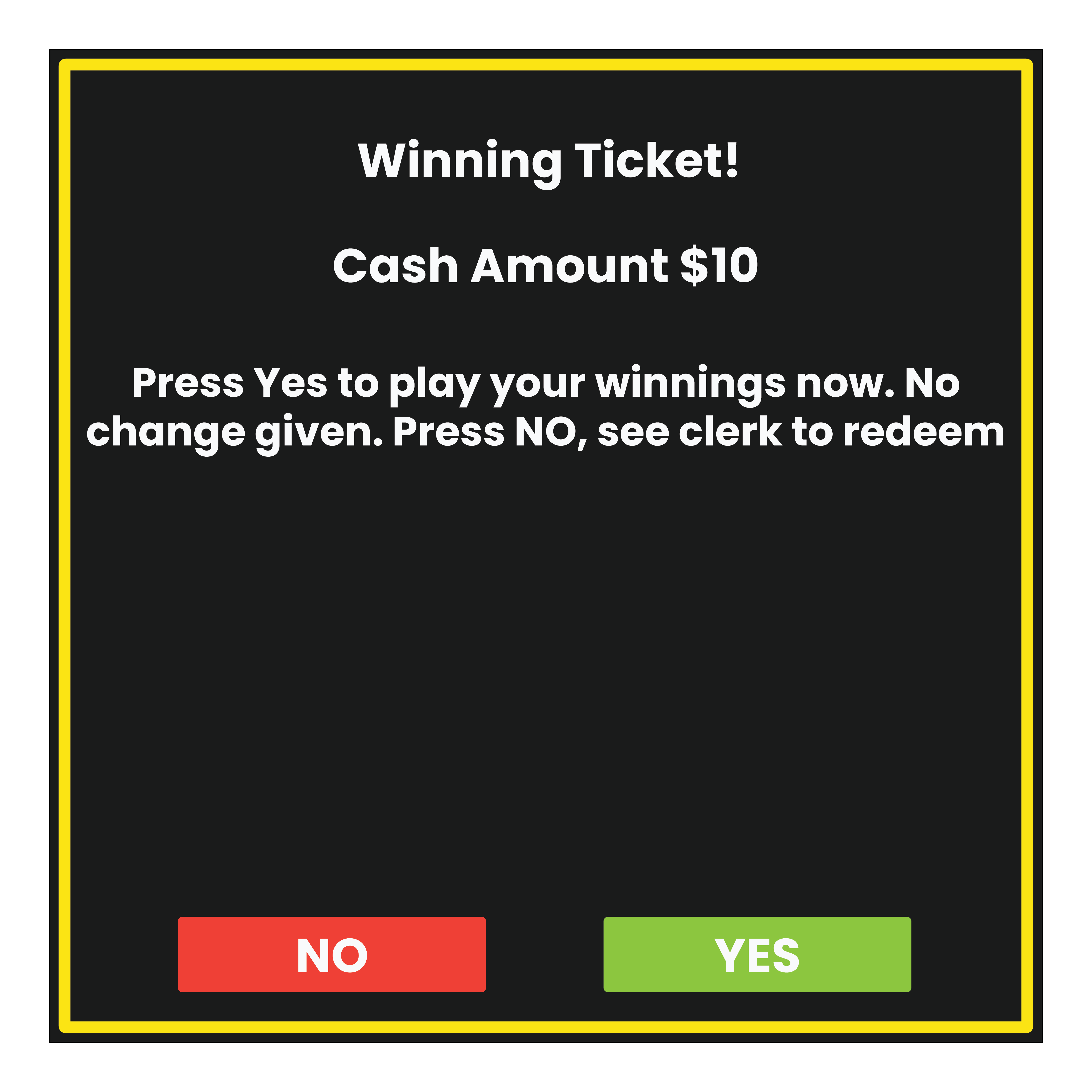
- If “YES” is selected, the winning amount of the ticket will be added to the Self Service Machine, as credits, to be used to purchase additional Lottery games.
- If “NO” is selected, the player will be asked to see the clerk.


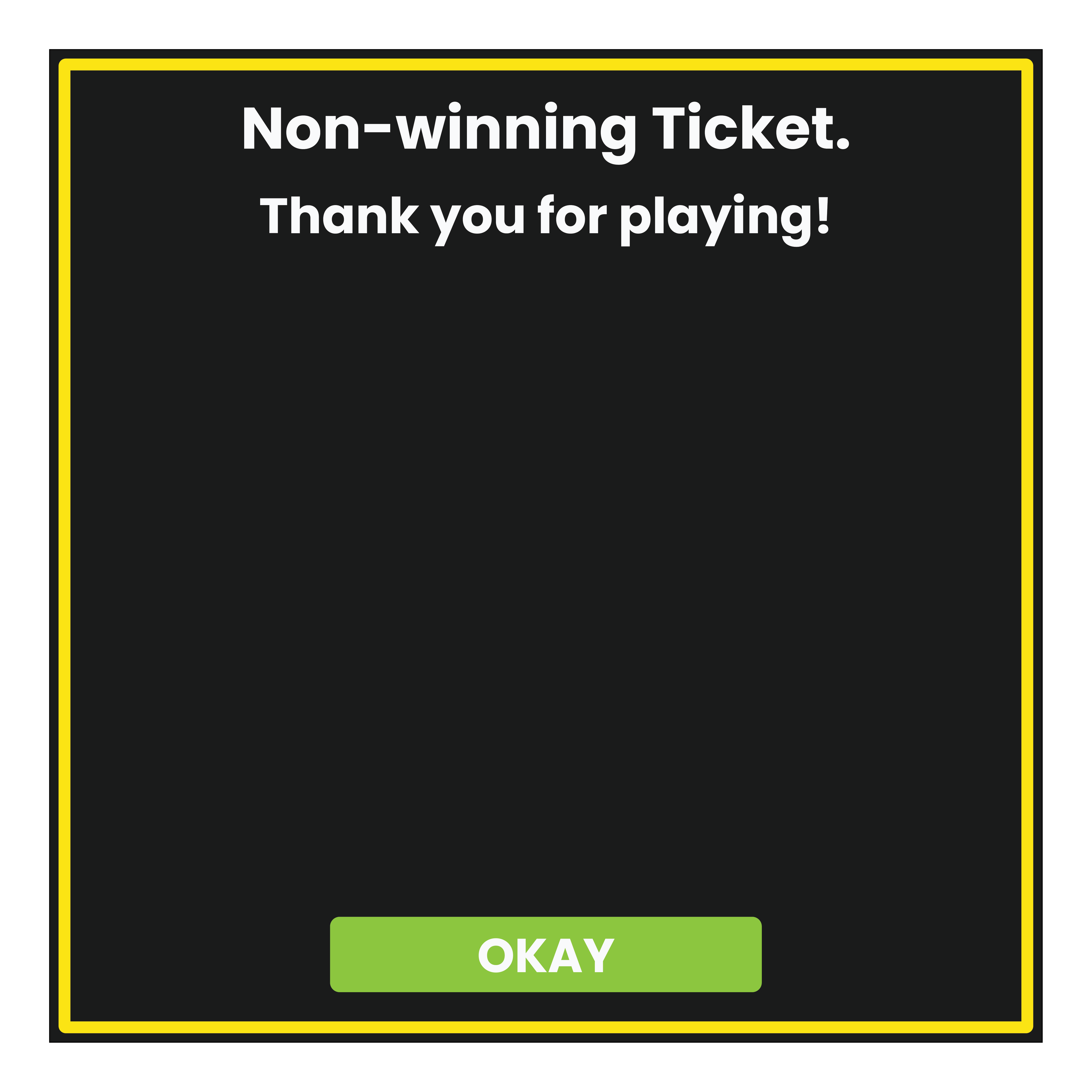
Non-Winning Tickets
Self-Service Scanner Troubleshooting
- Ensure that the ticket being scanned has not expired and is legitimate.
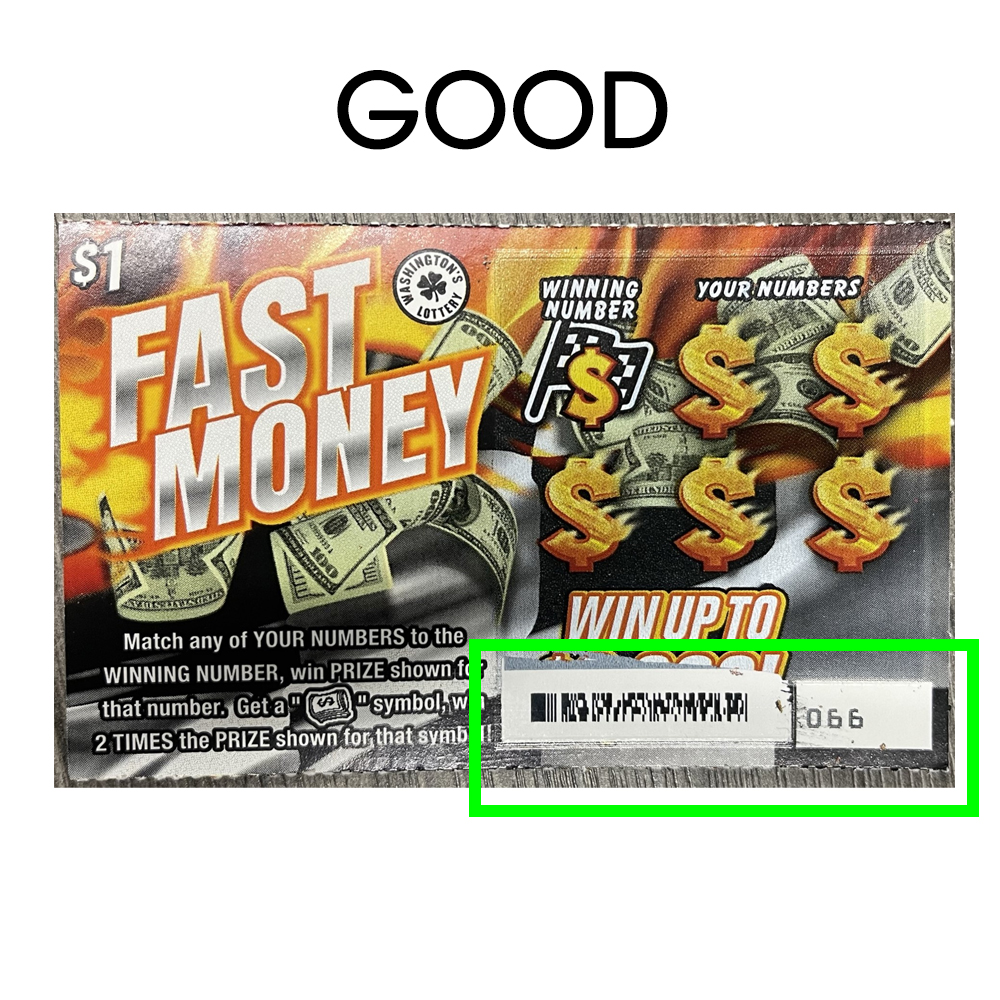
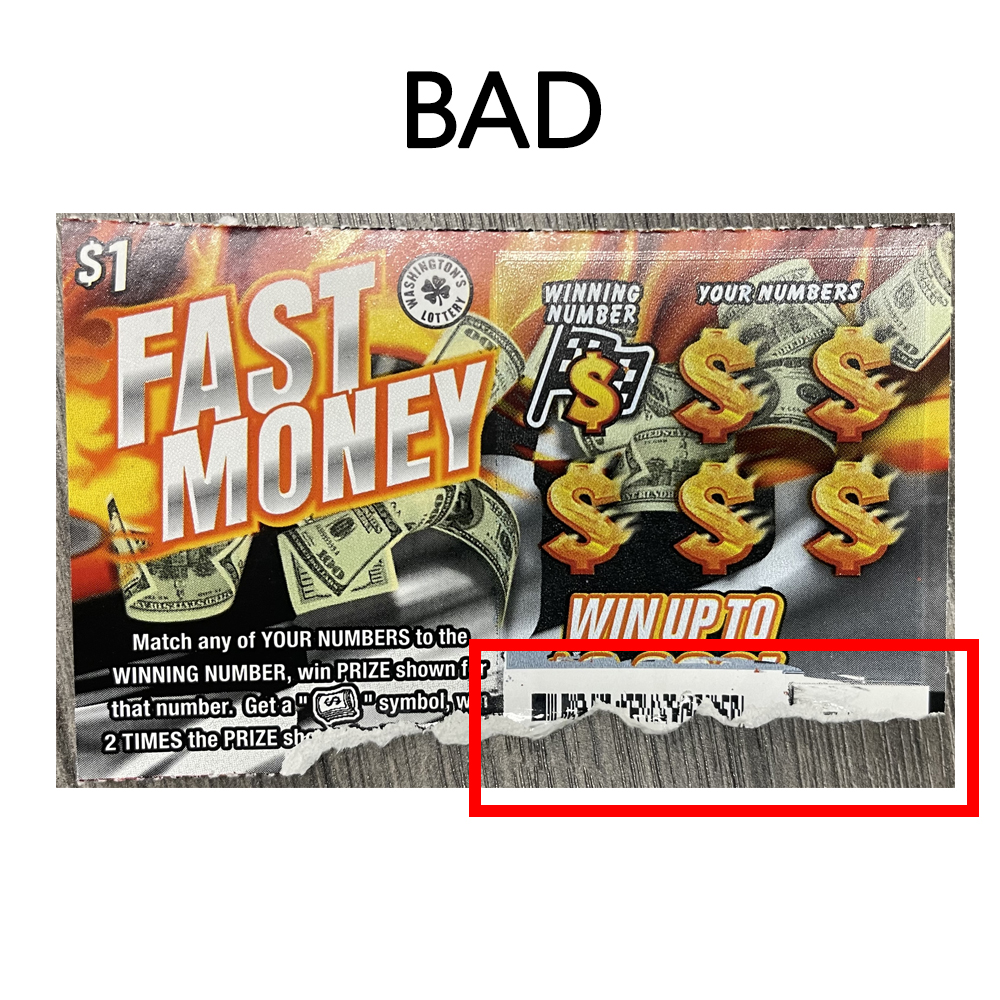
- Check the condition of ticket barcode to ensure it is not damaged or misprinted.
- Depending on the size of the barcode the ticket may need to be held closer or farther away. The ticket should be raised or lowered under the beam until the barcode registers.