Daily Activity Report
- Breaks down Draw and Scratch transactions
- Does not track the individual scratch ticket sales
- Used to verify Lottery purchases on the main register
- Can generate reports for up to 180 days back
- Lists draw game sales and separates by game
- Separates payout totals by draw and scratch
- Lists cancellations and promotions
- Provides daily accounting information
- Date specific
- Totals are accumulated throughout the day
- Report will run from 12am- 11:59pm
- Can be printed at any time throughout the day
- Cannot print sales for a specific time frame
- Reports can be pulled from up to 6 months back
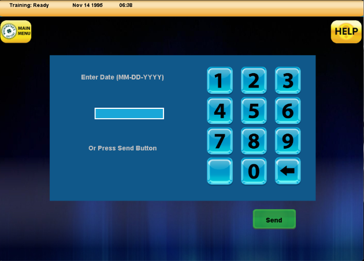
- Enter in desired date
- Can be printed at any time throughout the day
* The Daily Sales Report will combine sales for all lottery terminals
- Pull Lotto-to-go report, if sales information is needed from a specific terminal
Generating and Running Daily Activity Reports:



Enter the desired date for the report or press SEND to generate a report for the same day.
Daily Activity Report Overview:
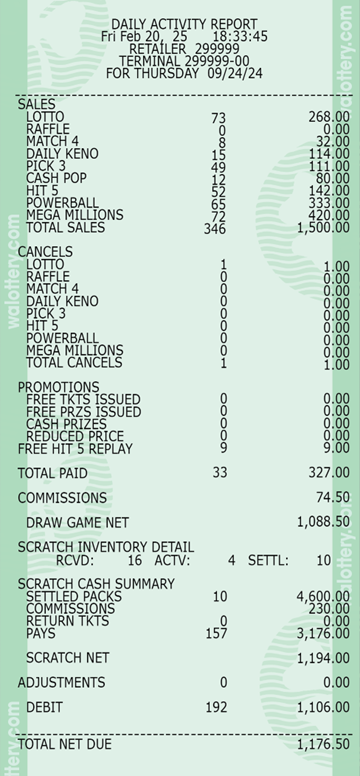
Report Information
- Sales
- Draw Games [All Draw Games]
- Includes quantity of tickets transactions and dollar values
- Does not include any scratch ticket sales
- Total Sales
- The sum of all draw sales from the lottery terminal
- Includes total quantity and dollar value
- Draw Games [All Draw Games]
- Cancels
- Any draw game tickets that have been canceled
- Mega Millions, Powerball, and Cash Pop cannot be canceled
- Tickets must be canceled before the draw sales closure
- Retailer will be automatically refunded for any canceled tickets
- Canceled tickets will still appear in “Sales” section of report
- Any draw game tickets that have been canceled
- Promotions
- Free Tickets
- Draw game tickets produced using lottery coupons
- i.e. Buy One, Get One Free Coupon
- Draw game tickets produced using lottery coupons
- Free Tickets
-
- Free Hit5 Replay
- Free Hit5 ticket produced from scanning a winning Hit5 ticket
- Bottom tier prize for Hit5 is a free Hit5 ticket
- Free Hit5 Replay
- Total Paid
- Total of draw game tickets paid out
- Does not include any payouts of scratch tickets
- Includes quantity of tickets and total dollar value
- Total of draw game tickets paid out
- Commissions
- Total commissions from draw ticket sales
- Does not include any commissions from scratch ticket sales
- Draw Game Net
- Total Sum for all draw games items
- Scratch Cash Summary
- Settled Packs
- Packs that have reached settlement threshold
- 50 days since activation or 80% validated (paid out)
- Will show quantity of packs and dollar value
- Will not be charged for settled packs until Tuesday EFT withdrawal
- Contact Lottery Rep for any questions or issues with settled packs
- Packs that have reached settlement threshold
- Commissions
- Commissions for scratch ticket sales
- Does not include any draw game commissions
- Return Tickets
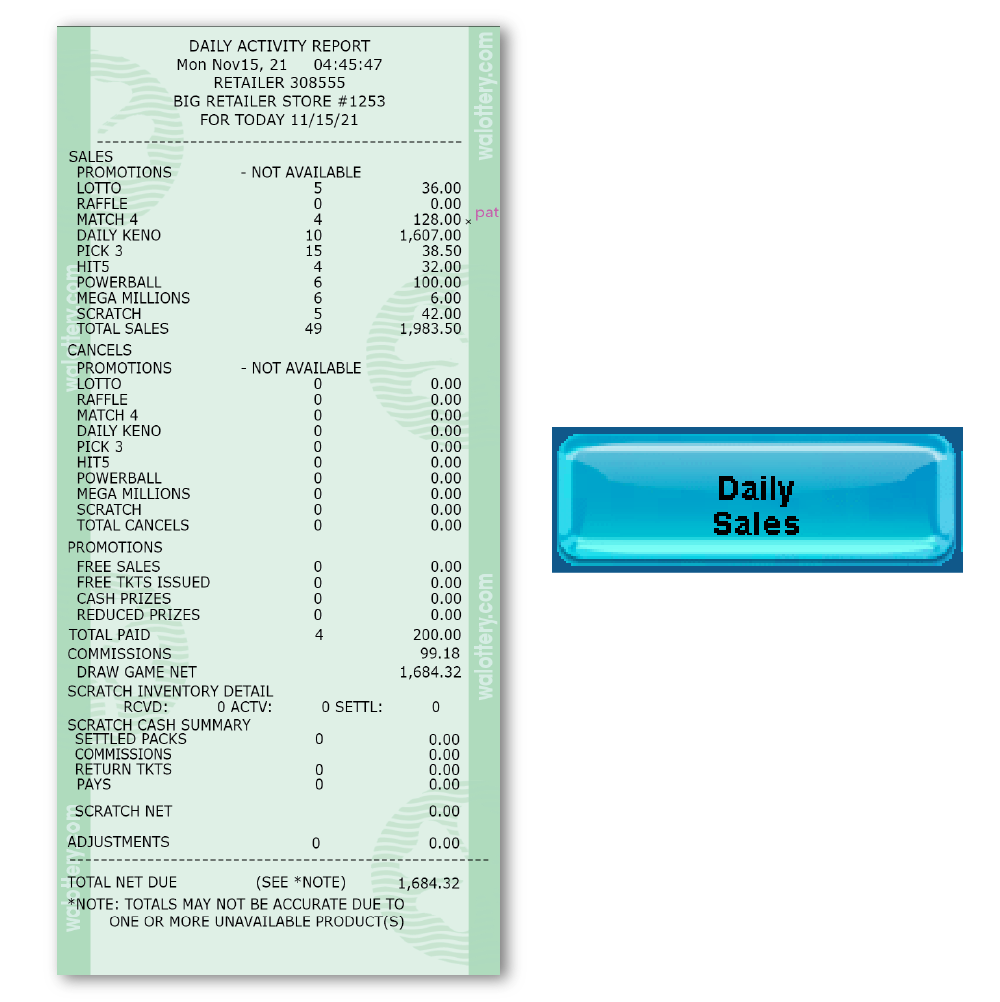
Daily Activity Report
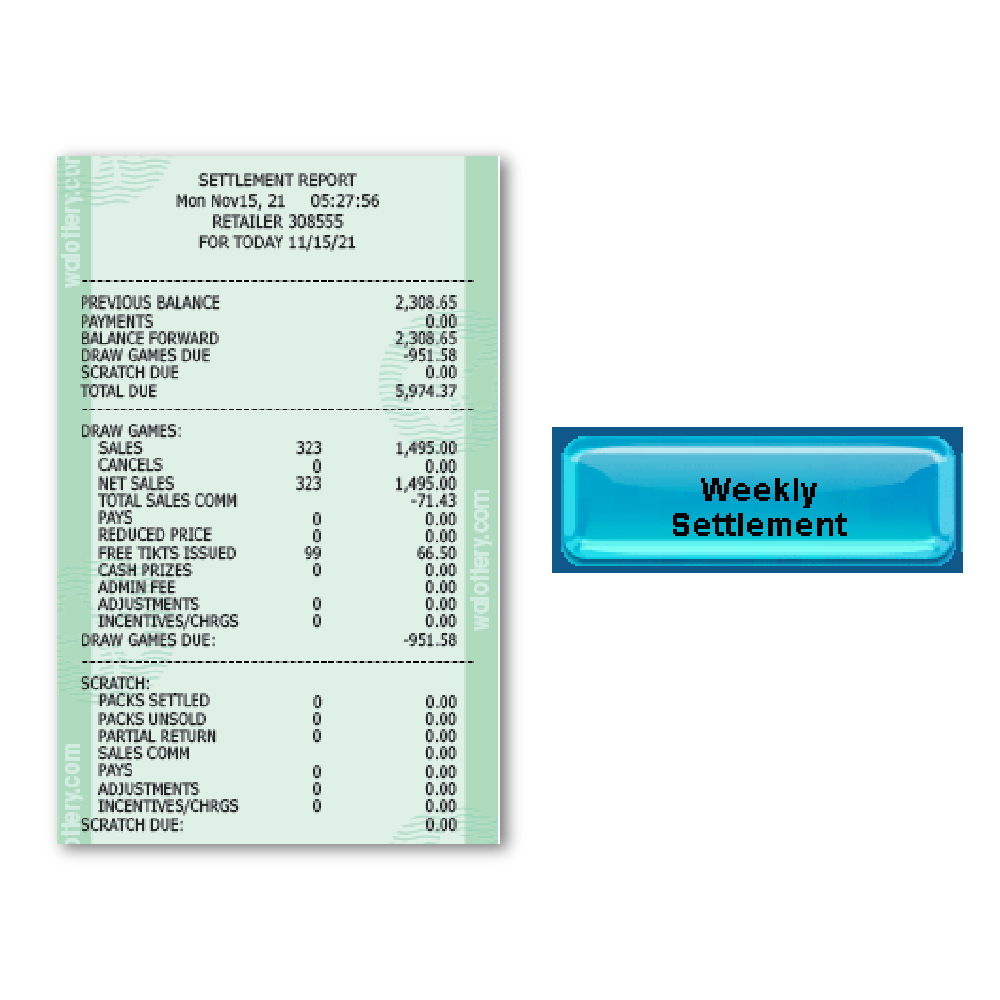
Weekly Settlement Report
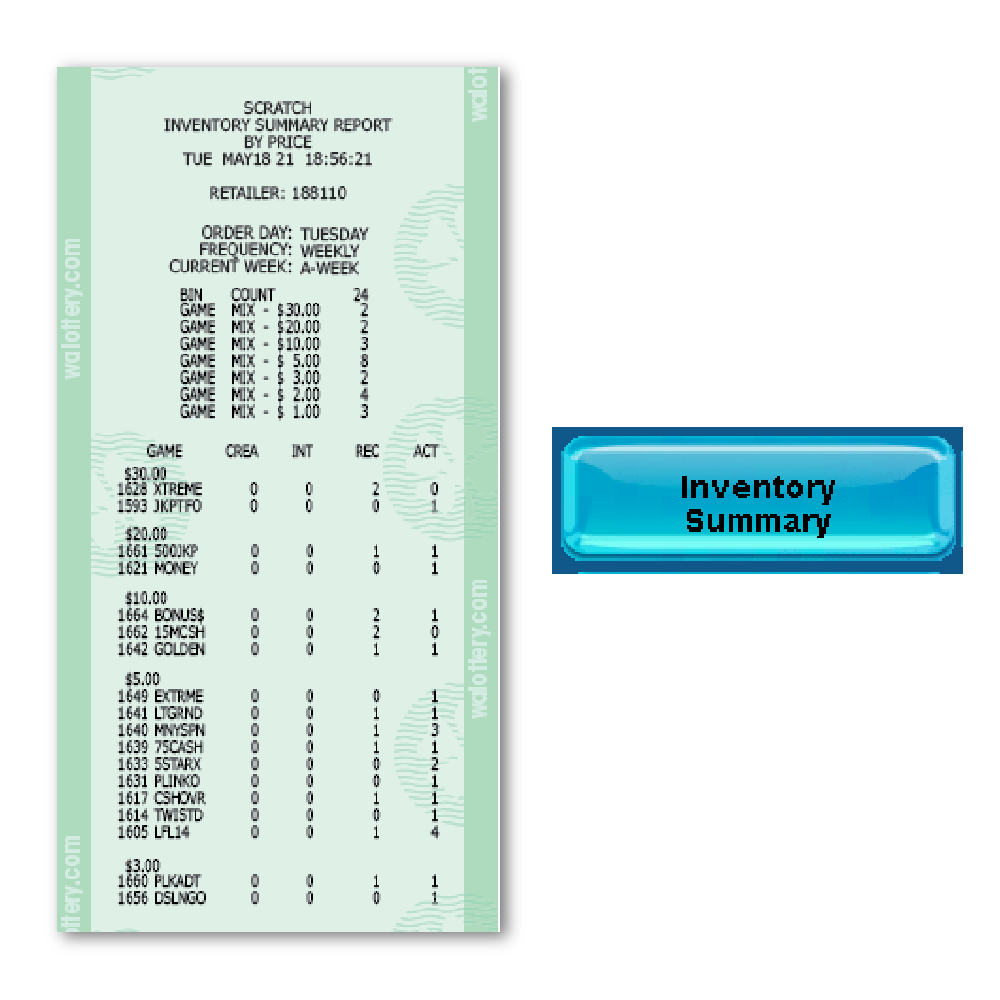
Inventory Summary Report
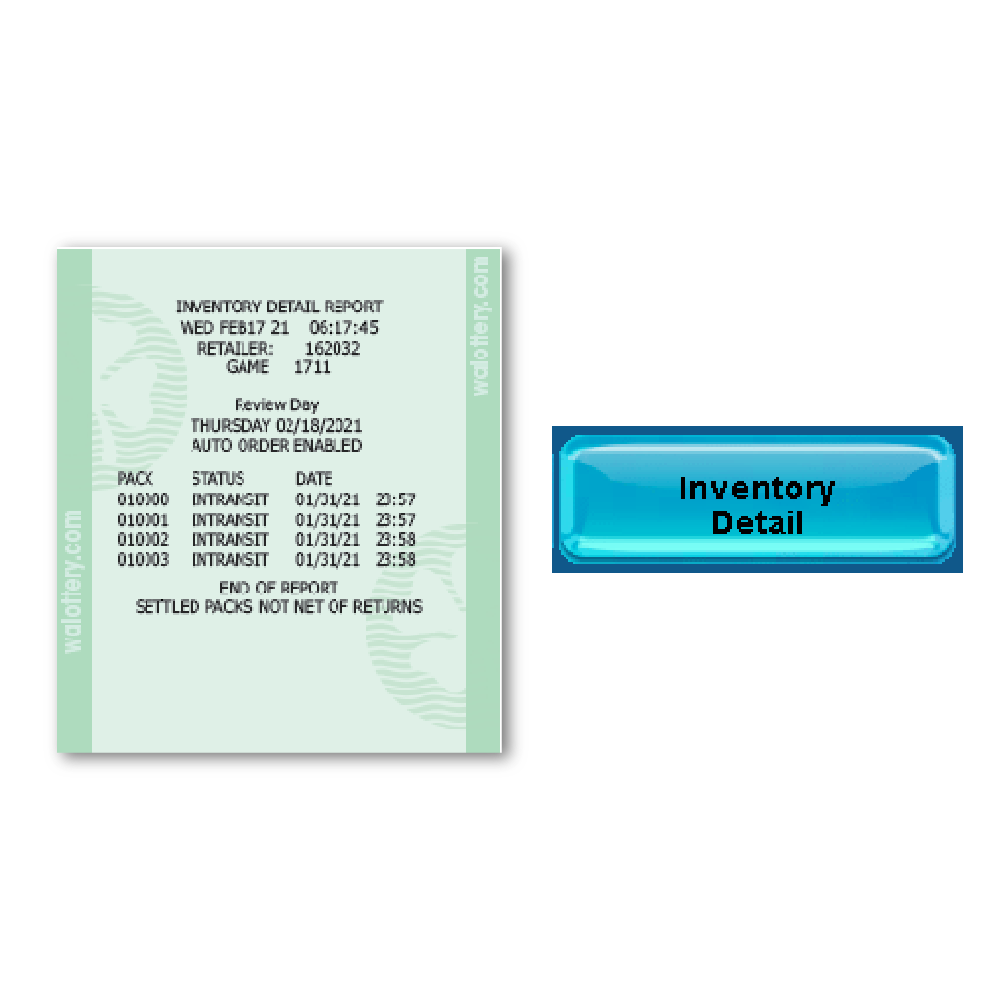
Inventory Detail
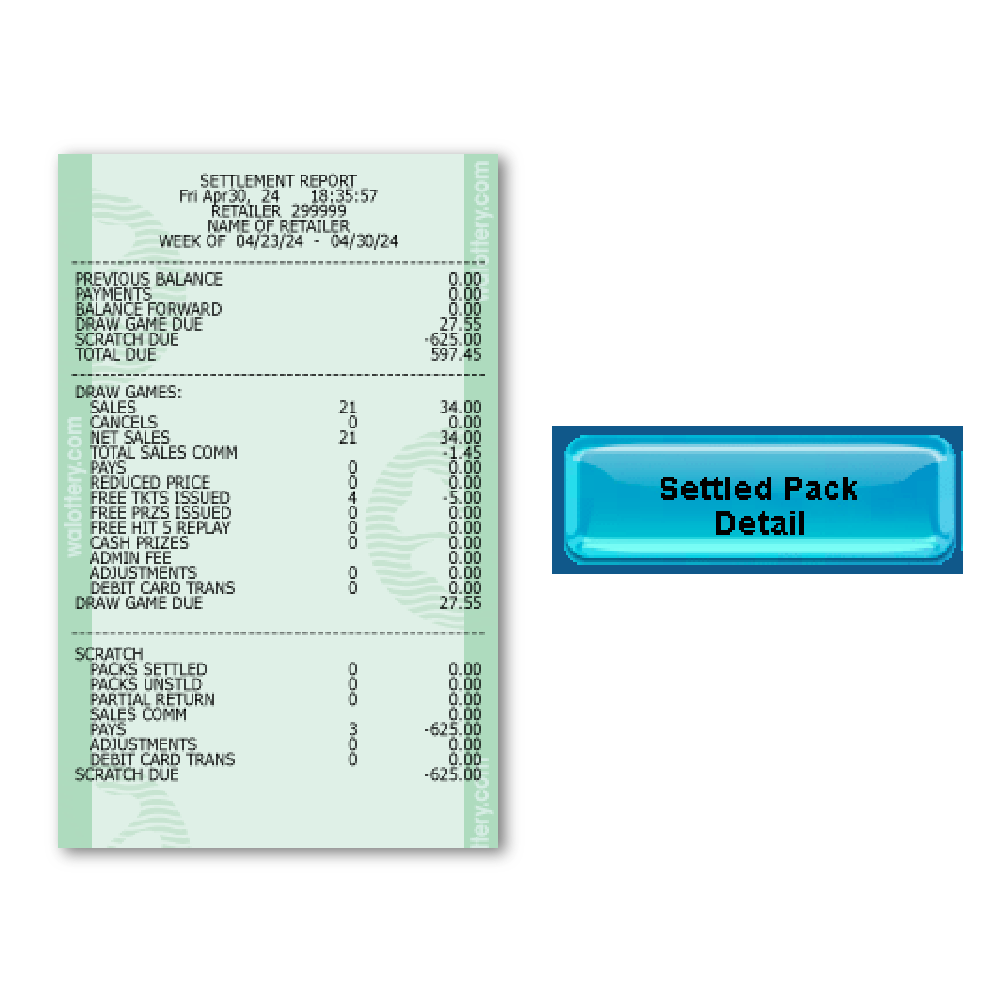
Settled Pack Detail
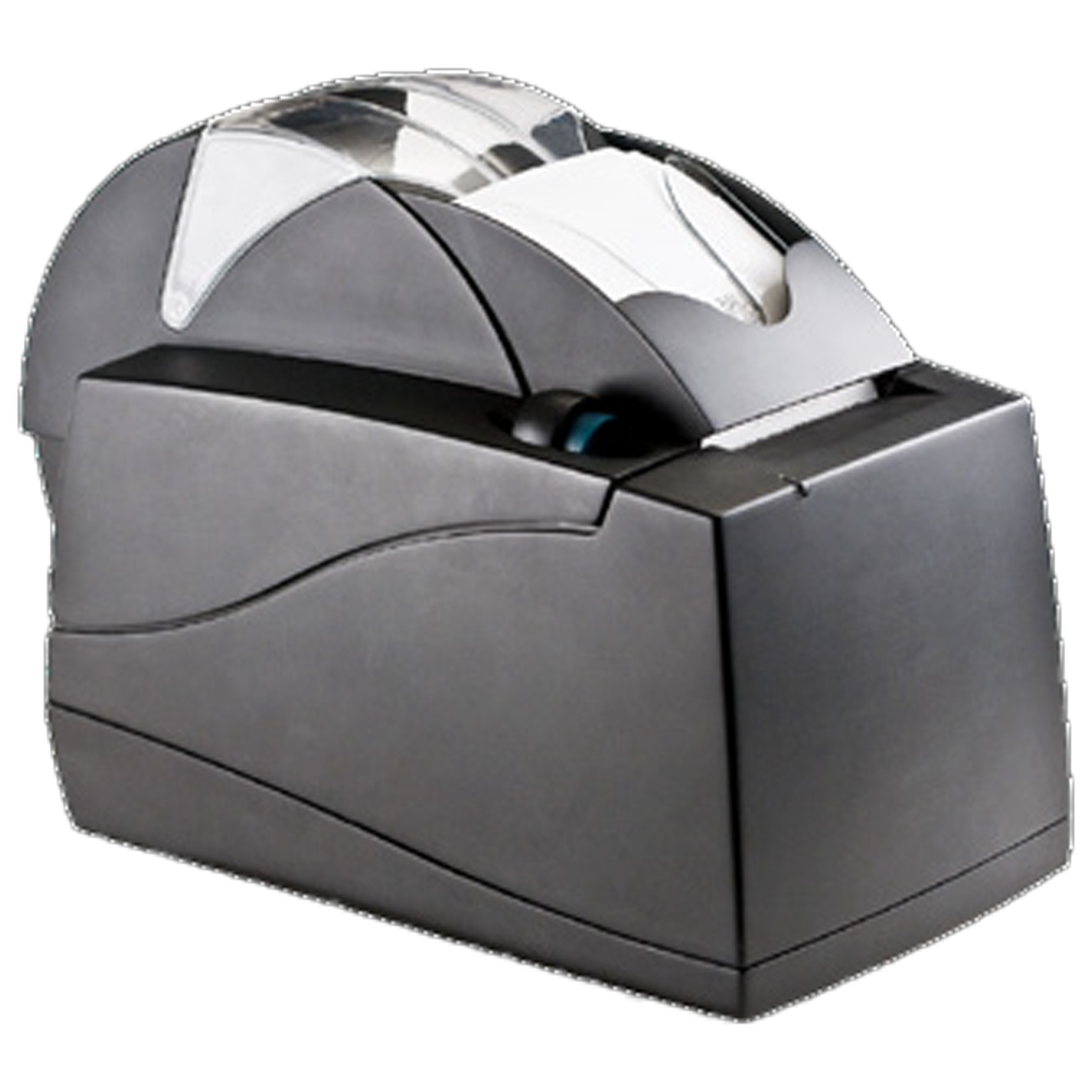
Loading & Changing Printer Paper
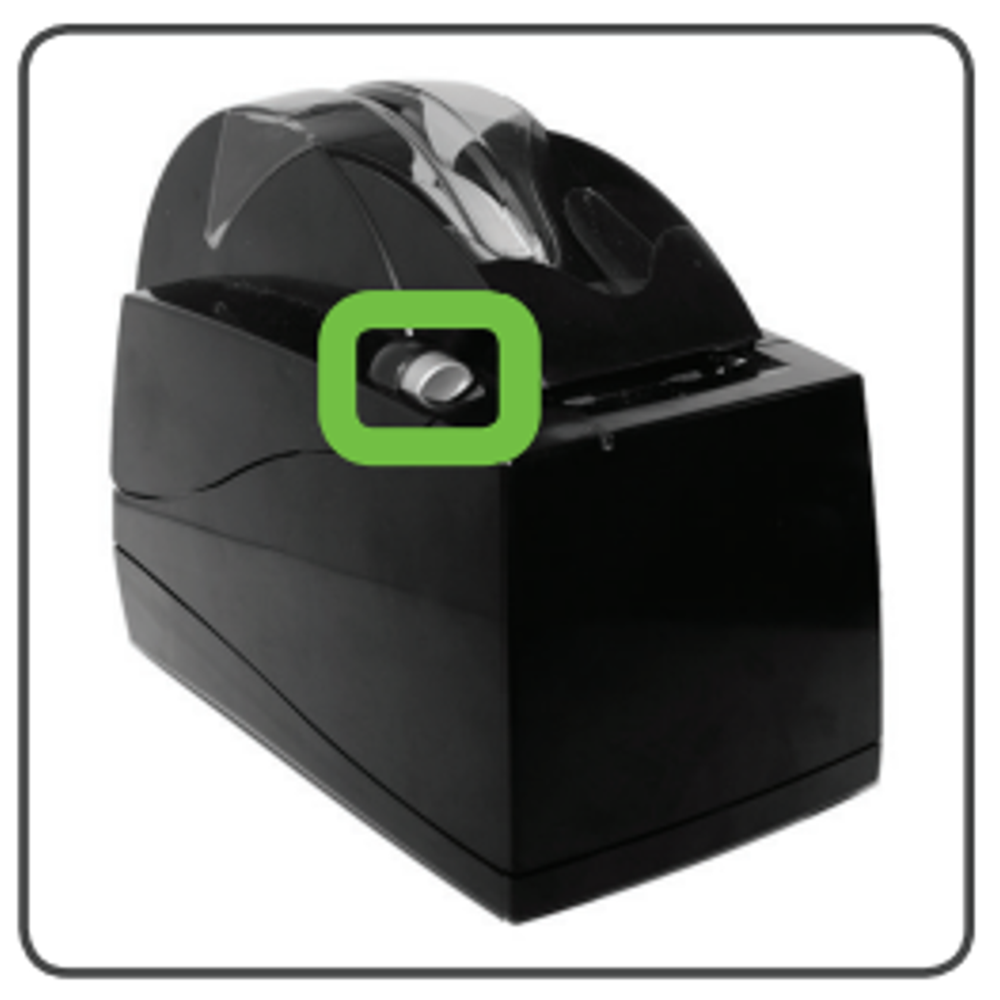
- Lift the latch up to open the printer cover.
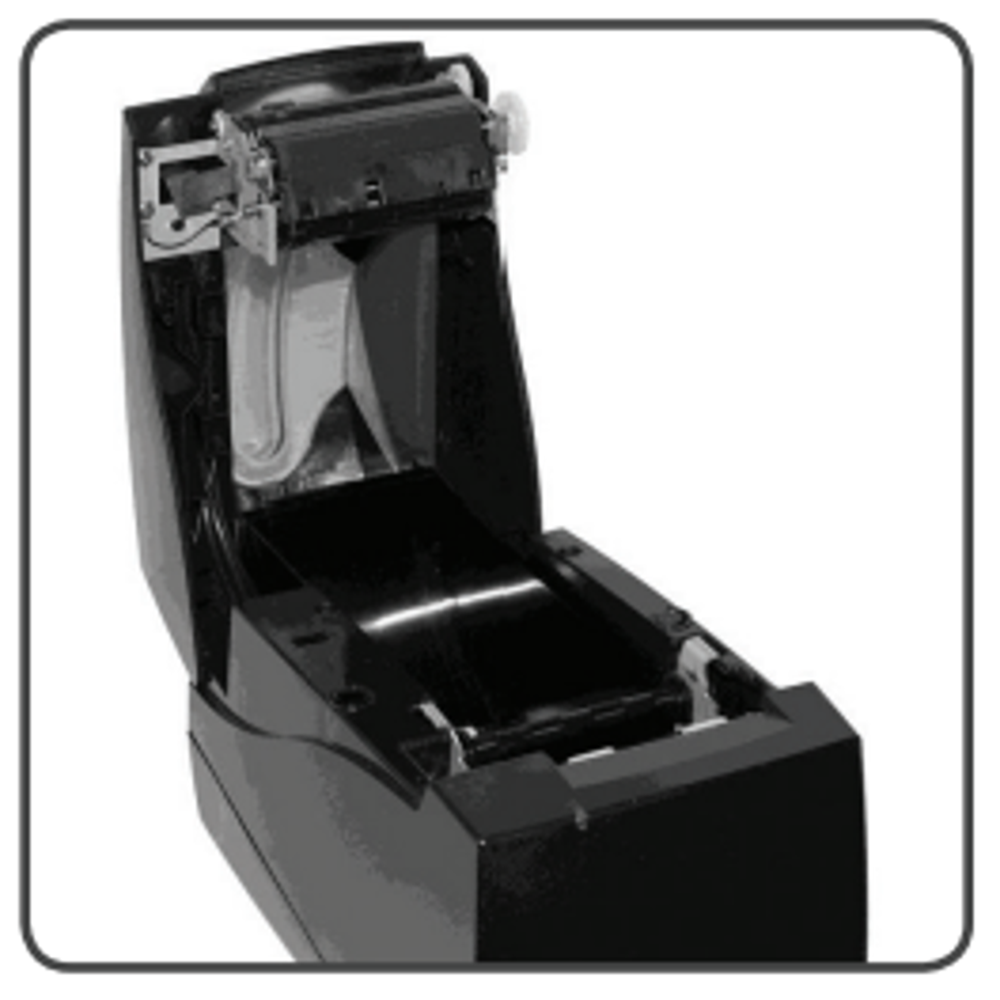
- Raise the paper cover to the open position.
- Raise the paper cover to open position.
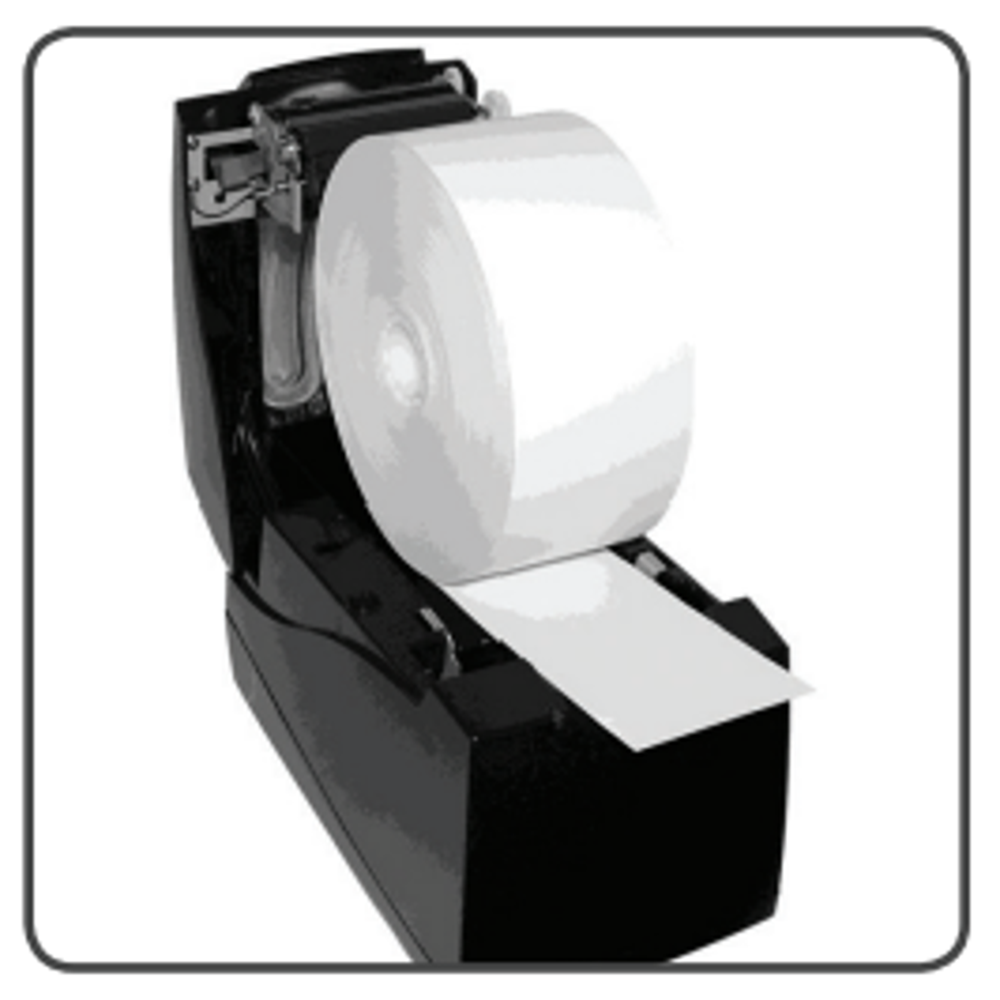
- Tear off the first layer of the paper roll and place it into the printer so that the paper unwinds from the bottom (front). See picture below.
- Leave a few inches of paper outside of the printer and close the paper cover firmly so that it latches securely.
- Paper feeds automatically to align itself then, the printer will automatically cut off the excess paper.
Videos Available:
- Cleaning the Accutherm Printer(1.10 minutes)
- How to change the Accutherm Paper Roll(.56 seconds)
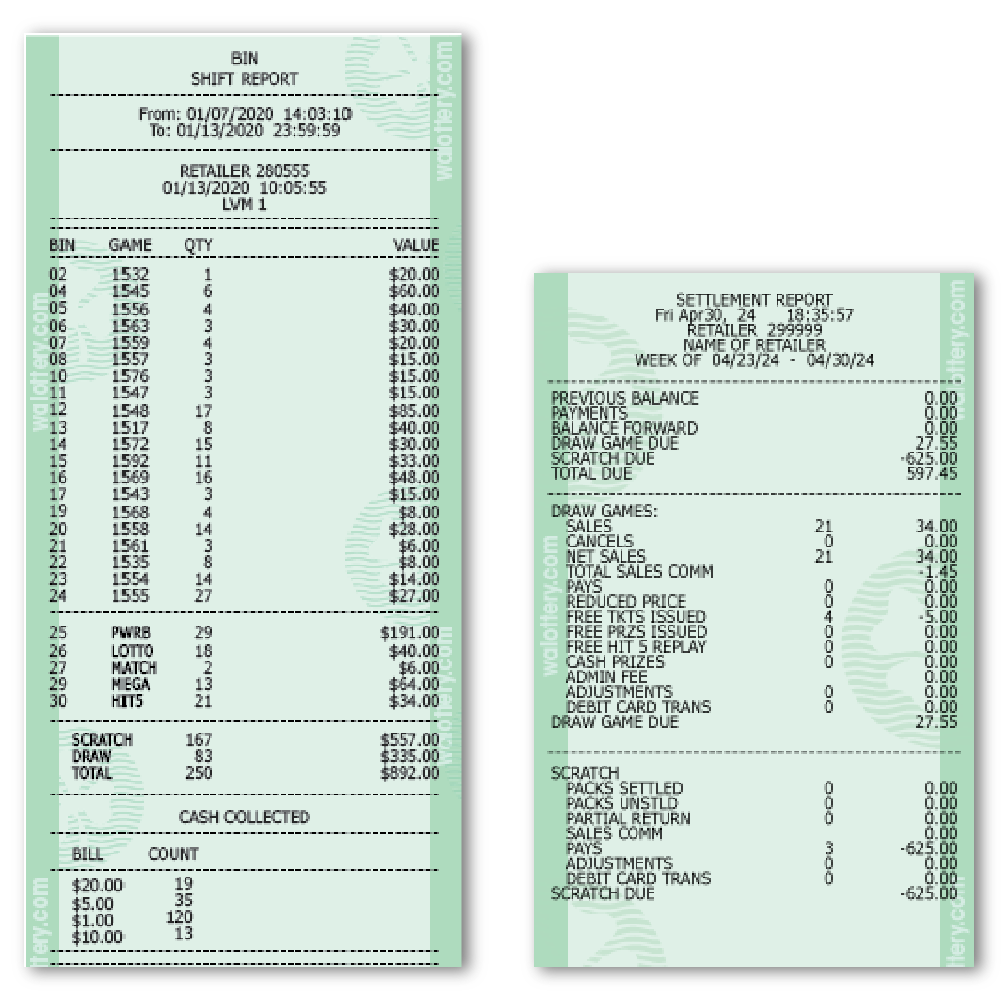
Common Reports
Scratch Inventory Procedures
Scratch Ticket
Management
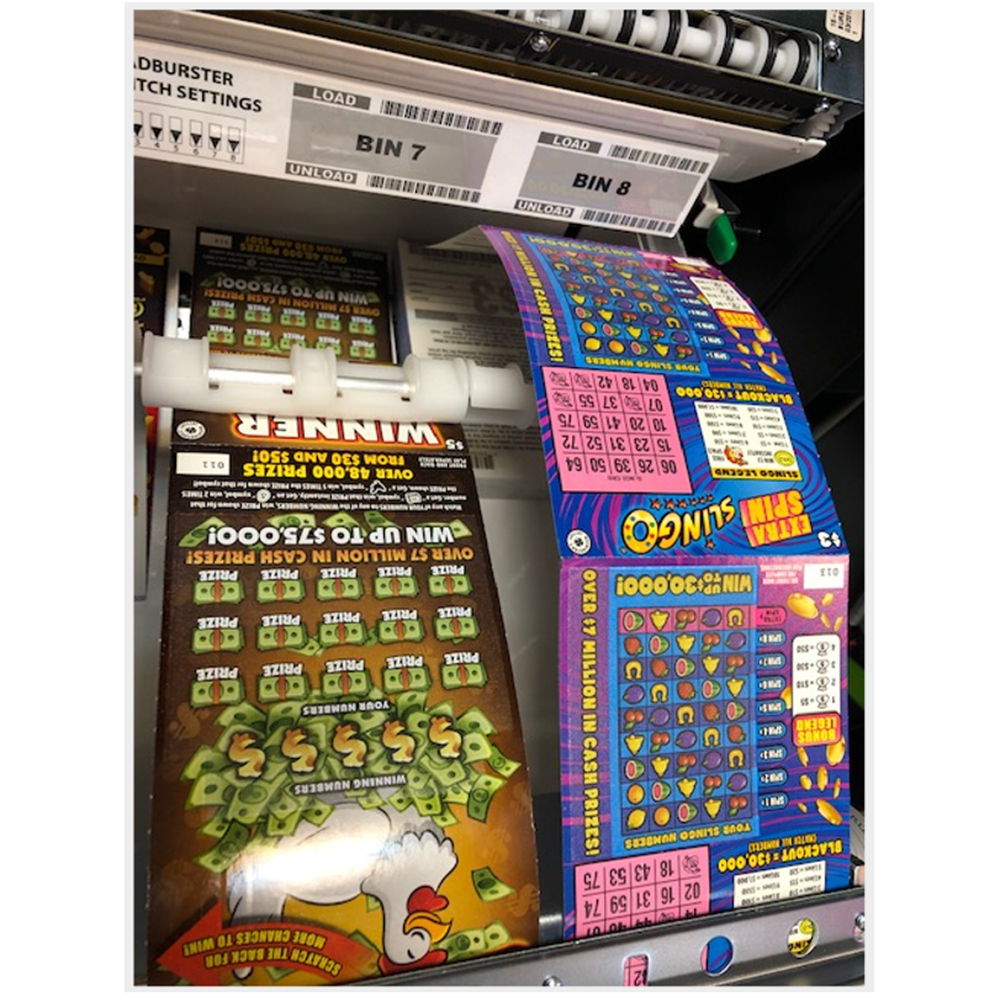
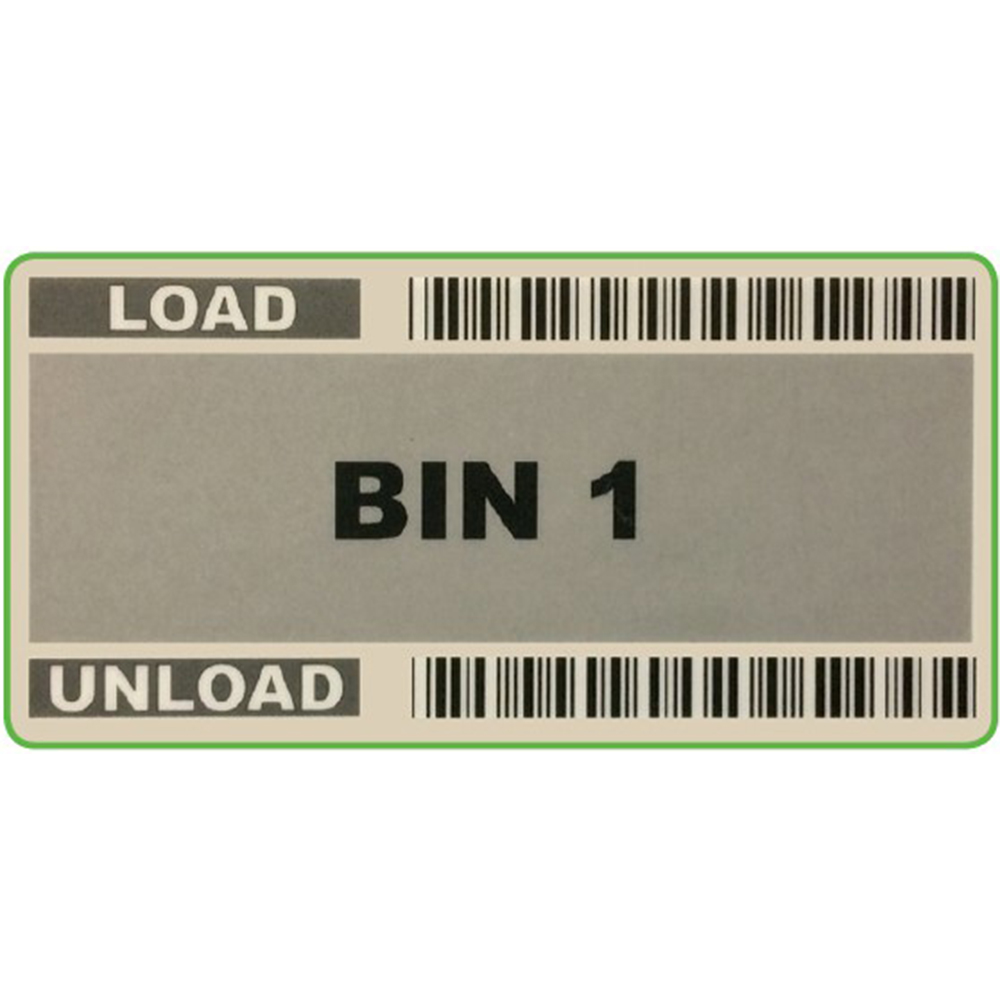
Loading / Unloading
BINs