Video Help
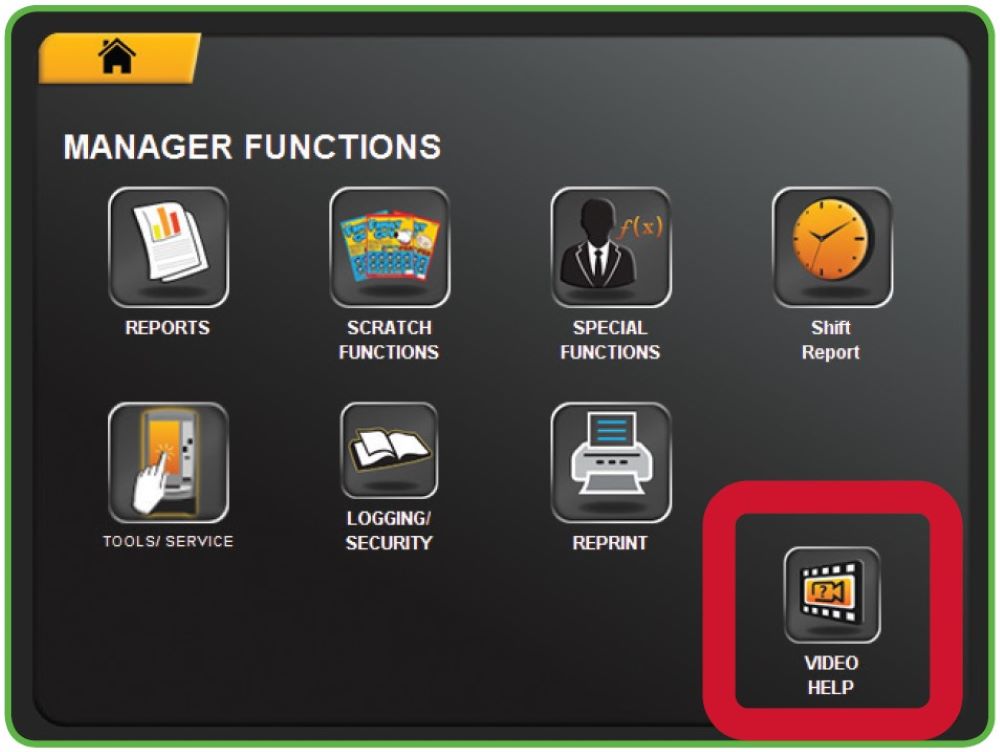
1. Touch VIDEO HELP from the Manager Functions menu.
2. Follow the on-screen prompts to view the help videos.
Reprint
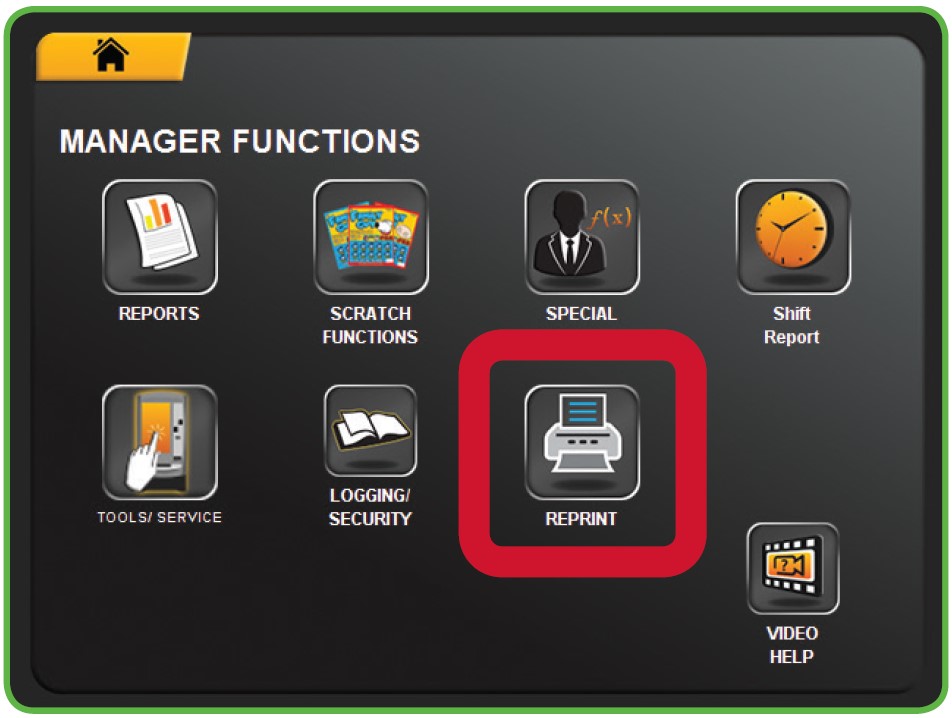
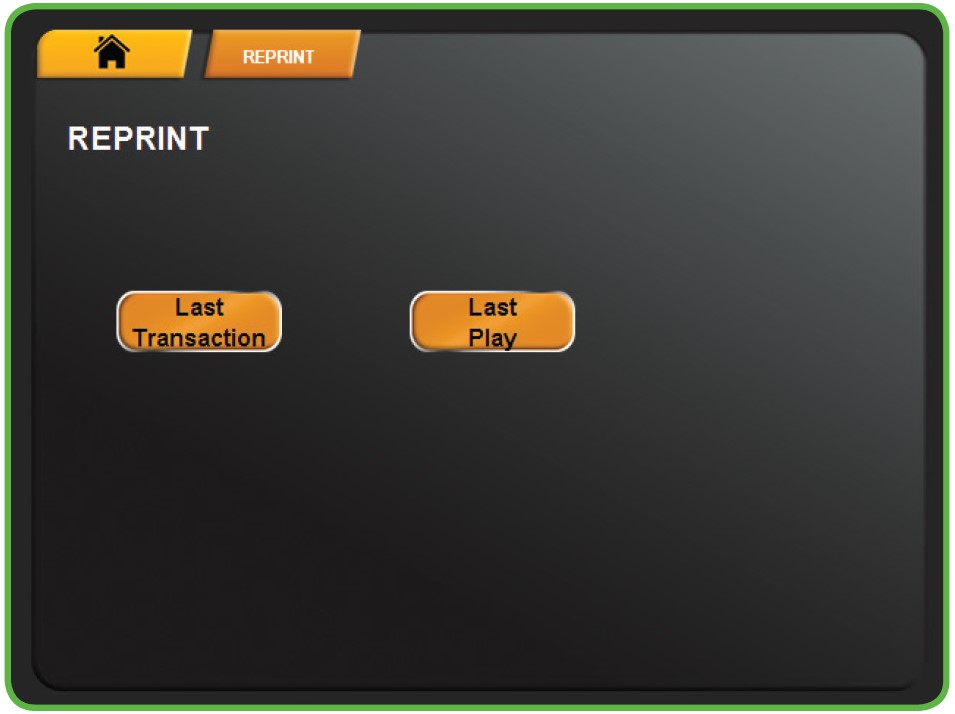
Reprint allows you to reprint the Last Transaction or the Last Play. If there is a draw ticket jam, this feature can be used to print the debit receipt for the player (after the jam is cleared).
- Touch REPRINTS from the Manager Functions Menu.
- The Reprints menu displays.
- Touch the desired option.
Journal
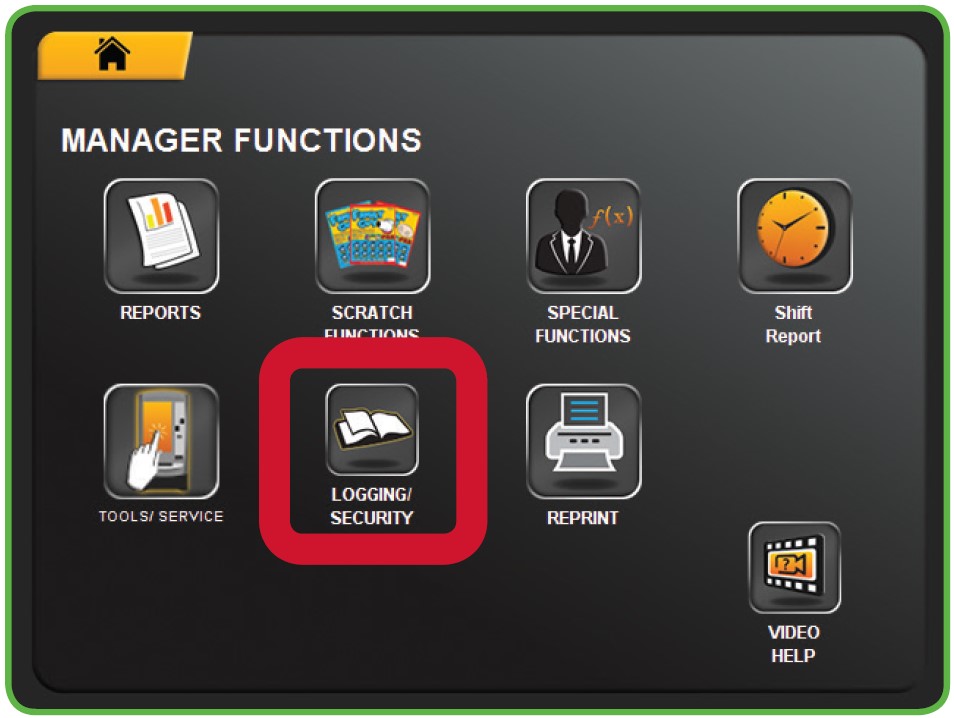
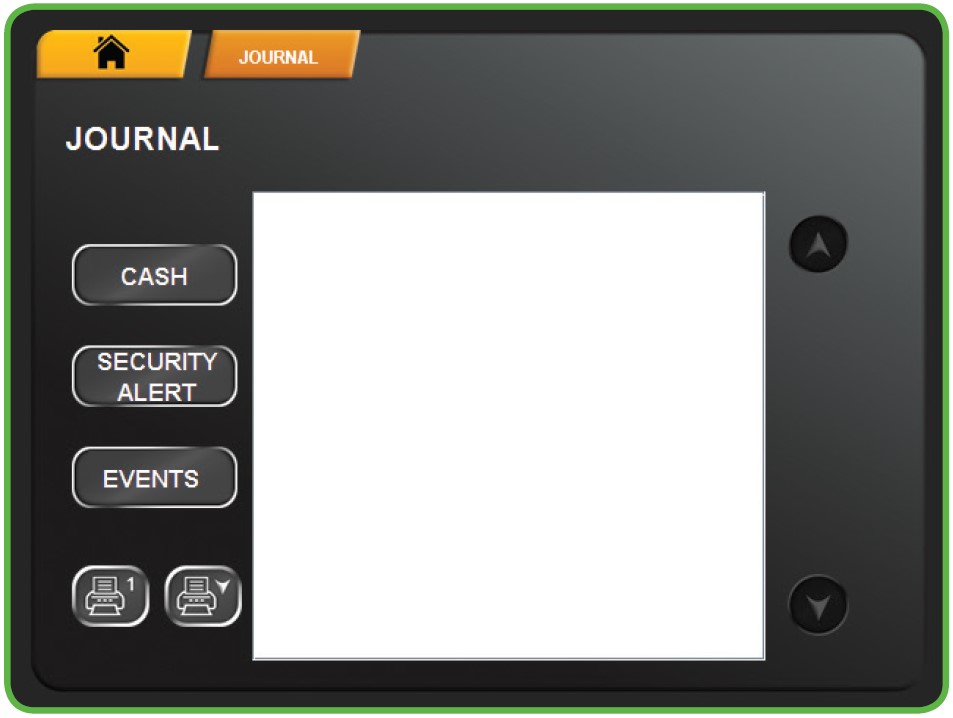
Journal lets you view/print the Cash Log, Security Alert, and Events Log.
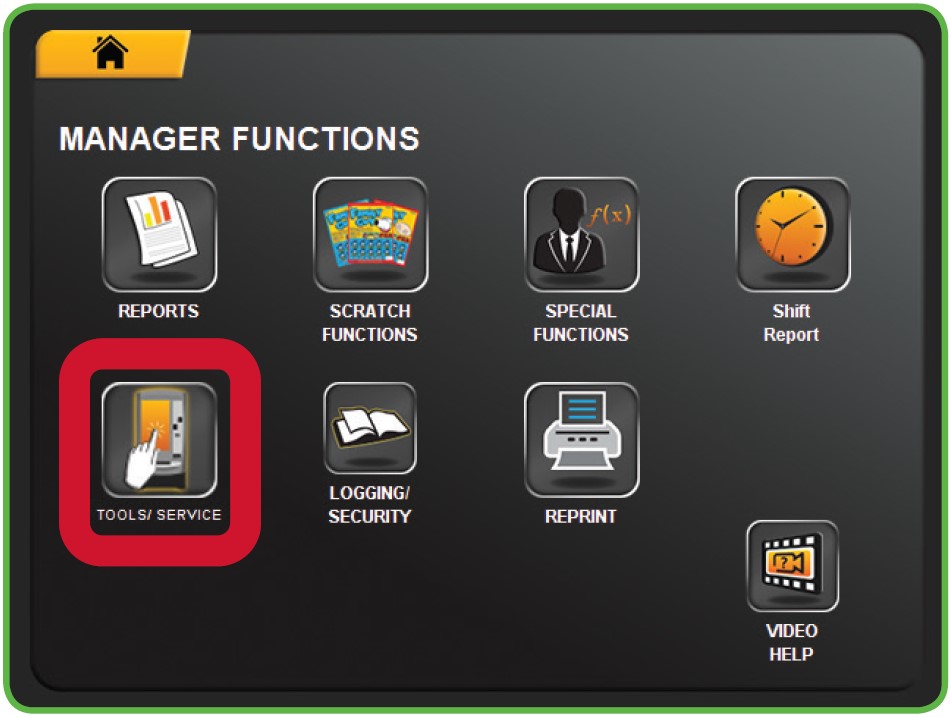
- Touch LOGGING/SECURITY from the Management Functions menu.
- The Journal menu displays. Select the desired option.
- The selected journal displays. Use the UP and DOWN ARROWS to scroll through text.
- Touch one of the PRINT buttons to print the report. Touch HOME to return to the Manager Functions Menu.
CASH LOG
The transactions on this log resemble the Transaction History Report that you use on the Altura terminal. This log reports Online sales, Scratch Tickets sold and the bin location of the sale, and the bills that have been inserted into the terminal and the stacker. By default, the Cash Log shows the last 100 transactions in the order they occurred. Via the settings, this number can be increased to 1000 transactions, as needed.
SECURITY ALERT
Displays everything that has been accessed on the terminal by Date, Time, User, and Description for the last 200 records. The log will overwrite anything that exceeds 256 records as new events occur. Examples of events may include “Main Door Opened” and “Cash Box Removed”.
EVENTS LOG
Captures information reported by the terminal which is divided into three pre-defined categories; Low, Medium and High. Depending on the type of event it is sent and recorded by the Central System. Examples of such events include “Main Door Open” and “Cash Box Removed”. A retailer can choose to display the events based on their category by selecting from the filter displayed on the top right of the screen. Retailers also have the option of printing what is visible on-screen using the Print button (1) or printing all records on the filtered log using the Print All icon with the down arrow.
Device Tests
The Device Status screen displays all of the components in the terminal and their current operational status.
TO ACCESS THE DEVICE TESTS:
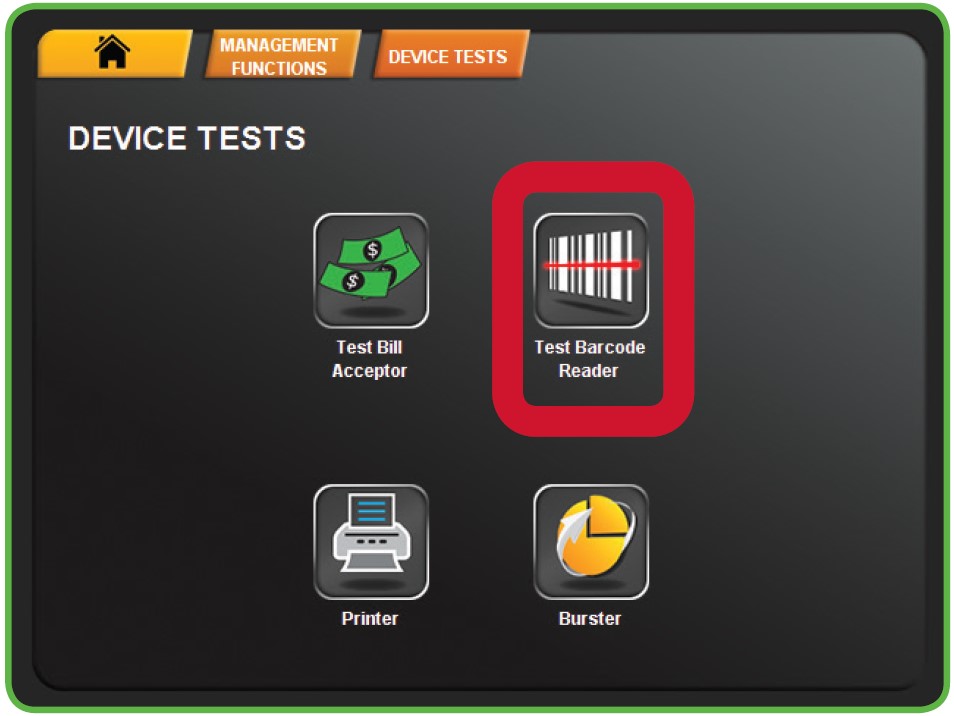
- Touch DEVICE from the Tools/ Service Menu.
- The Device Tests menu displays. Select the desired option. For example touch TEST BARCODE READER.
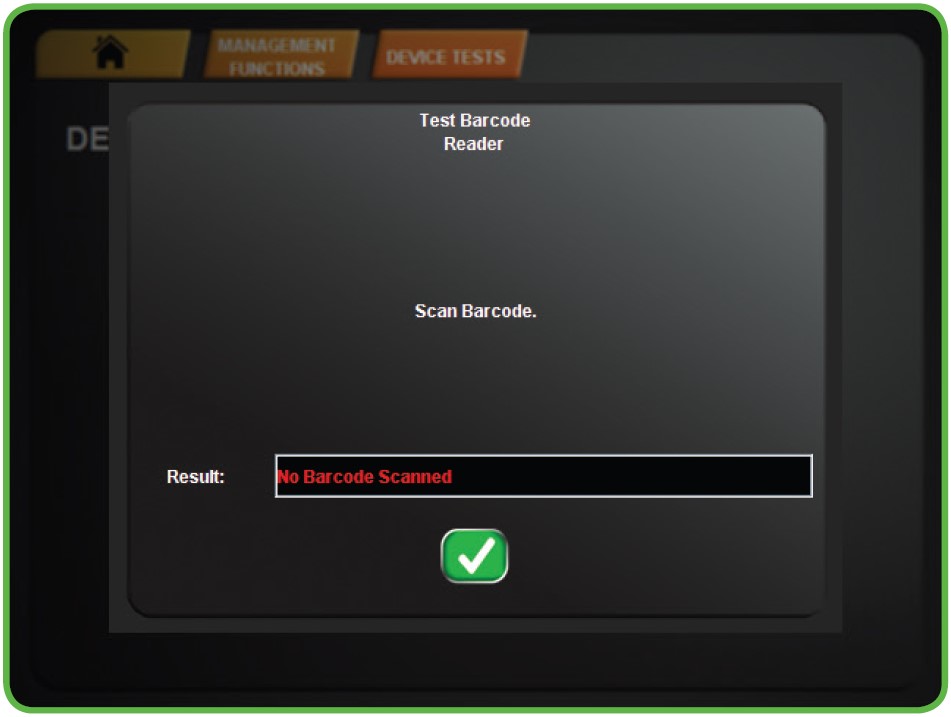
- Scan a barcode to test the Barcode Reader, then touch the GREEN CHECKMARK.