Self Service ITVM: Suspend and Resume ITVM
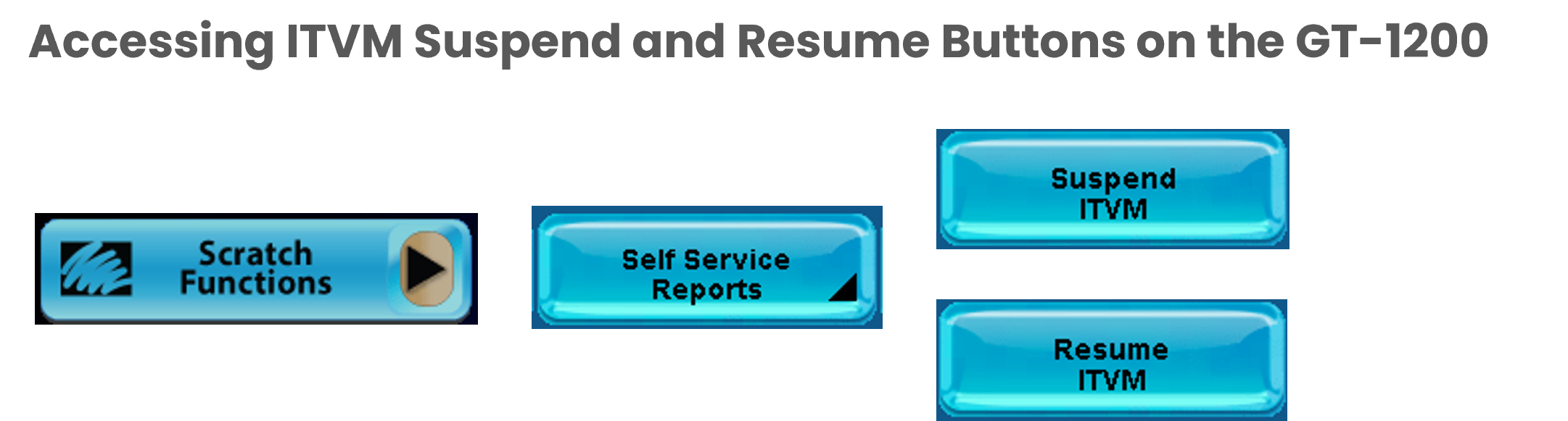
Suspend ITVM

Using the Suspend ITVM button on the GT1200, Retailers with a connected Self Service Terminal can immediately stop transactions from taking place at the ITVM.
Resume ITVM

When transactions are suspended on the ITVM, Retailers can reactivate the machine by pressing the Resume ITVM button.
Self Service ITVM: Security Report
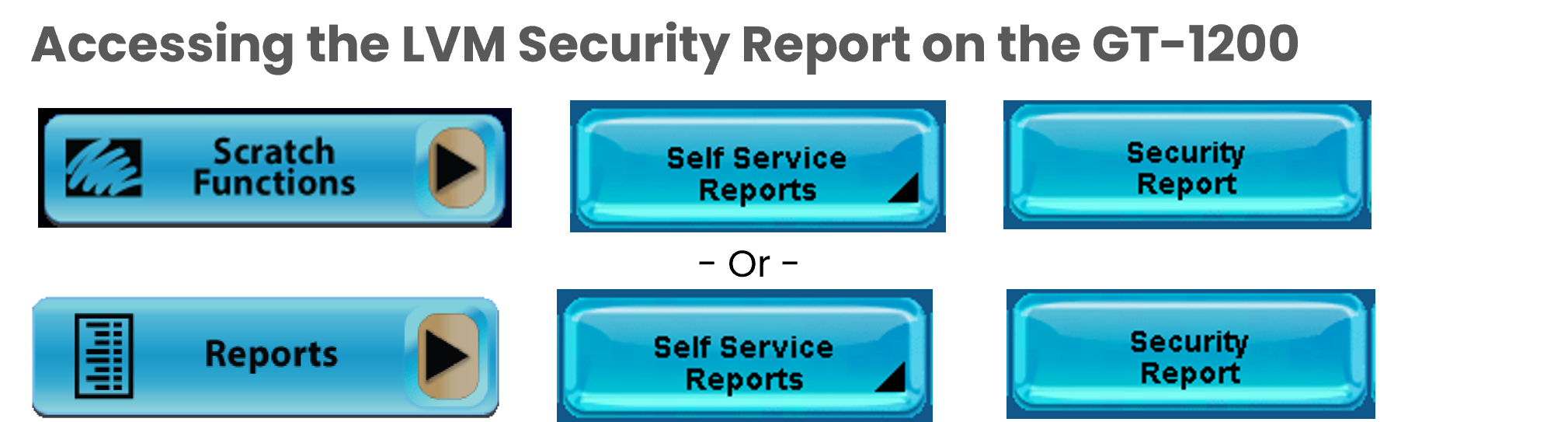
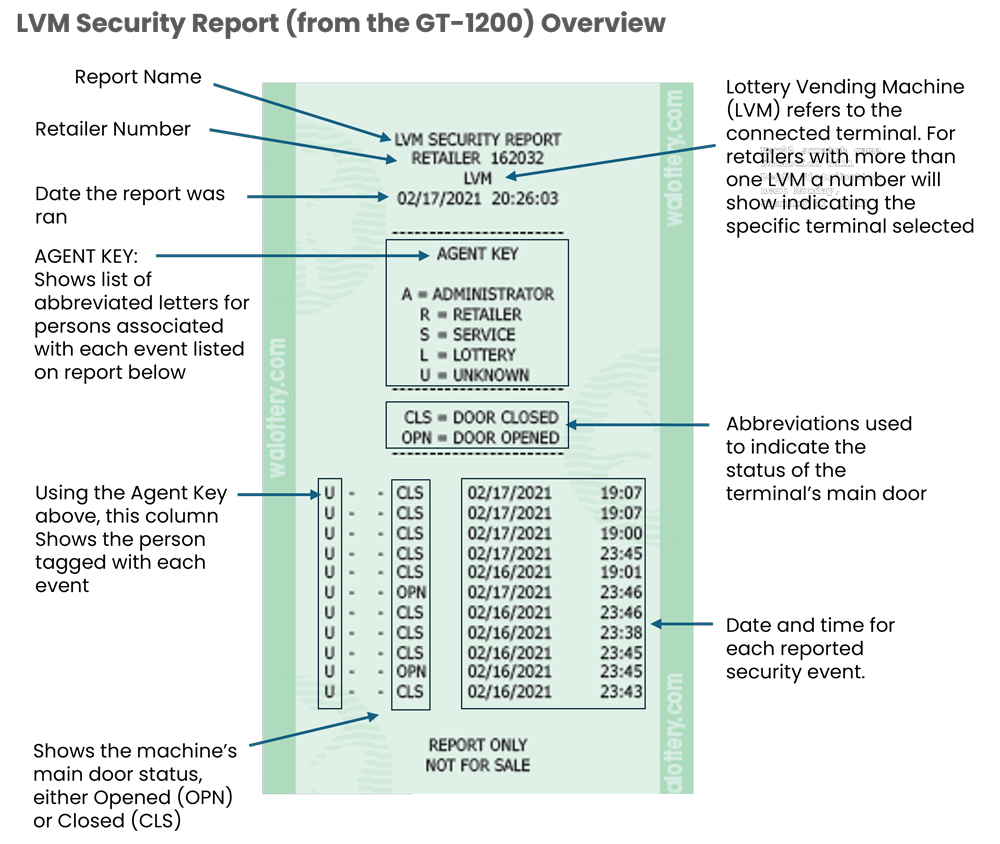
Printing the LVM Security report from the GT-1200 shows the previous ten (10) occurrences of when the Lottery Vending Machine (LVM) or Self-Service Terminal (SST) main door reported open or closed.
Please Note: When running the LVM Security report from the GT-1200, both terminals must be linked and communicating on the same network. If both terminals are not communicating, the following message may appear:

Best Practice: For a more comprehensive list of security events and details, Retailers should run the Security Reports directly from the connected LVM or SST.
- Link to Running LVM Security Report from the SSTs
Self Service ITVM: Status Report
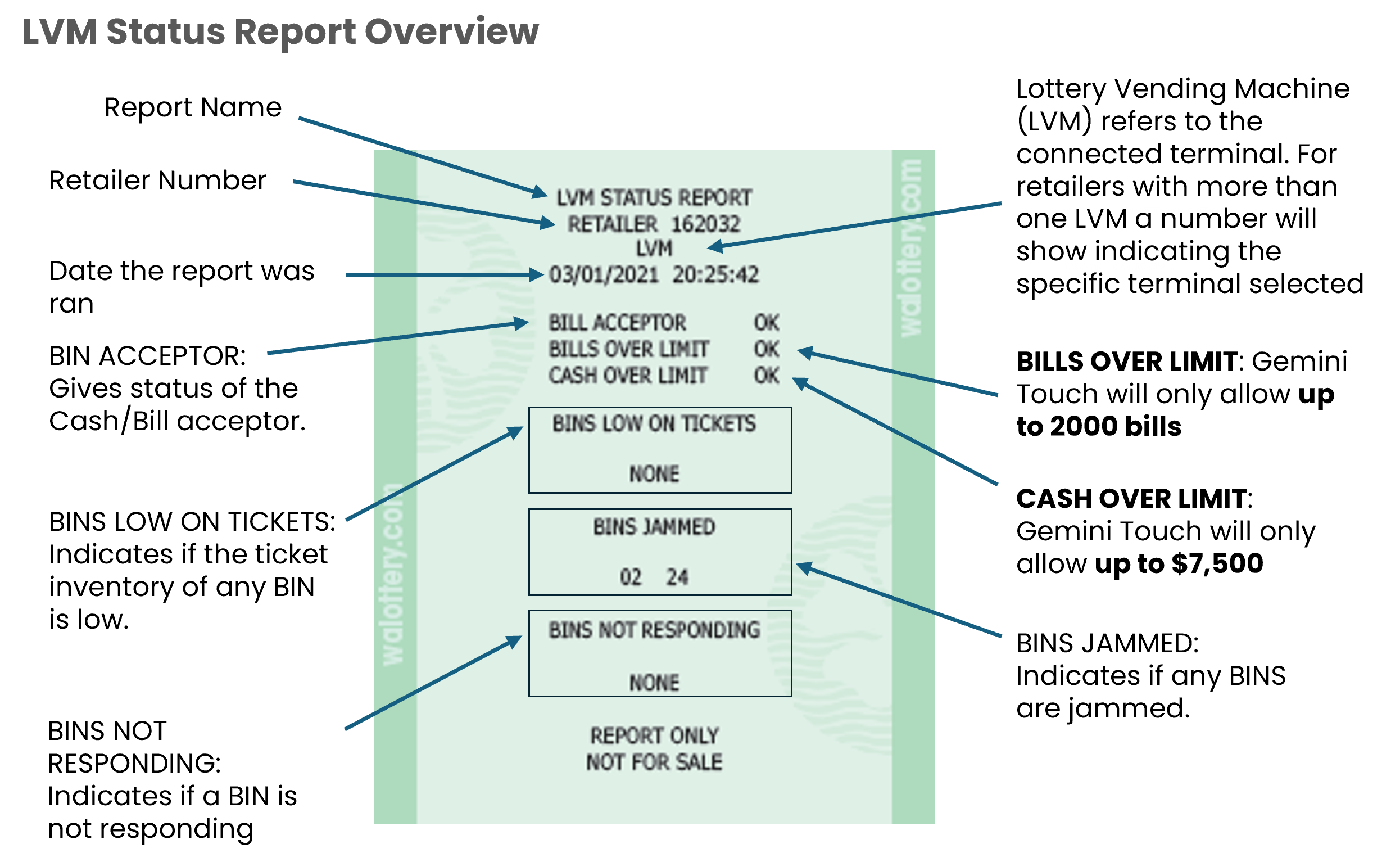
The LVM Status Report shows a quick overview of the functionality/usability of the connected Self-Service Terminal (SST) or Lottery Vending Machine (LVM). The Status Report also indicates if any BINS are low on tickets, jammed or non-responding.
Accessing the LVM Status Report on the GT-1200

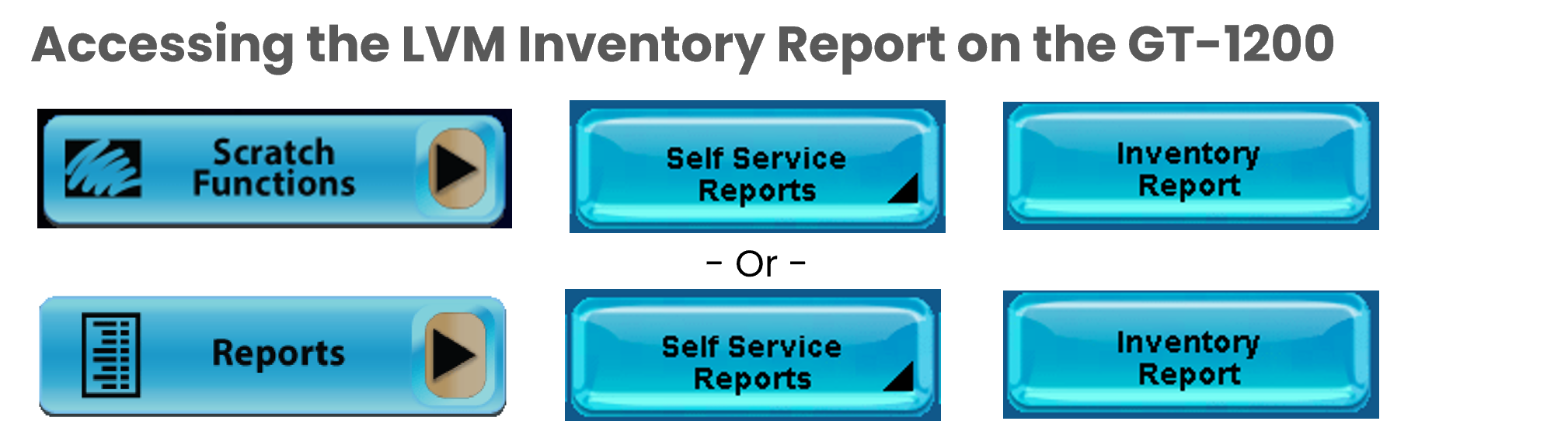
Self Service ITVM: Inventory Reports
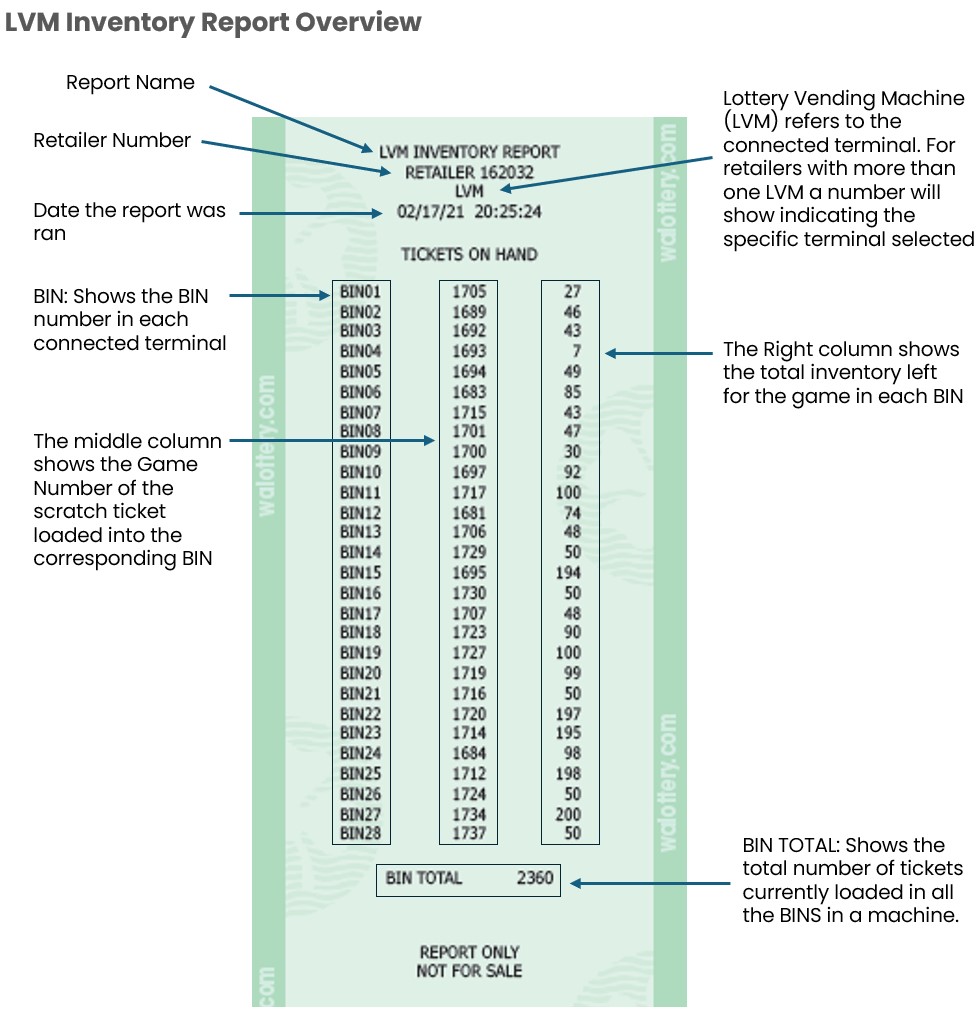
The LVM Inventory Report provides a quick overview of the scratch tickets loaded into a connected Self Service Terminal (SST) or Lottery Vending Machine (LVM). The Report breaks down inventory based off game number and quantity of tickets in each BIN.