Ventus Communications Troubleshooting
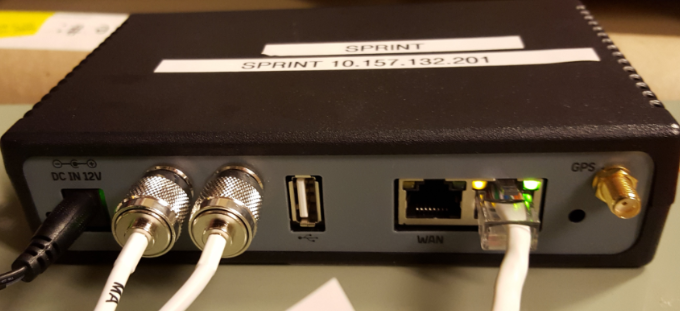
Note: Power status can be checked on the rear panel of the Ventus V2000
-
Verify that the Ventus Router has power by viewing if the LED on the rear panel is lit. (The power LED is located next to power cord connection.)
- Ensure all power and data connections to Ventus Router, Antenna, and terminal are secure.
Ventus Router Not Getting Power
-
Check the circuit breaker
-
Try a different outlet
-
Ensure Ventus router power supply is plugged in to an electrical outlet
-
Verify power to electrical outlet using a small appliance (radio, etc.)
- If necessary, Power reset the terminal by unplugging from the wall outlet. Do not reset the Ventus Router if it already has power.
Ventus Router Has Power
- Ensure all power and data connections to Ventus Router, Antenna and terminal are secure. Active LAN ports on the Ventus modem should have a flickering green or yellow light on the port where the cable is plugged in.
Note: If there is no light, one side of the cable is not being seen. The terminal could be powered off or the connection may be loose.
- Turn off the terminal by using the toggle on the back or by unplugging it from an electrical outlet.
- Unplug the power cord to the Ventus from the power outlet. Wait 30 seconds to a minute for battery back up to power off.
If any lights still remain on after unplugging:
- There is a small button that can be gently pushed in with a pin on the back of the Ventus. There will be a click when the button is pressed and the Ventus should completely power off. This usually resolves most Ventus issues but can take up to 15 minutes to process.
- Plug the Ventus router back in. Ensure lights are back on before moving to the next step.
- Power the terminal back on.
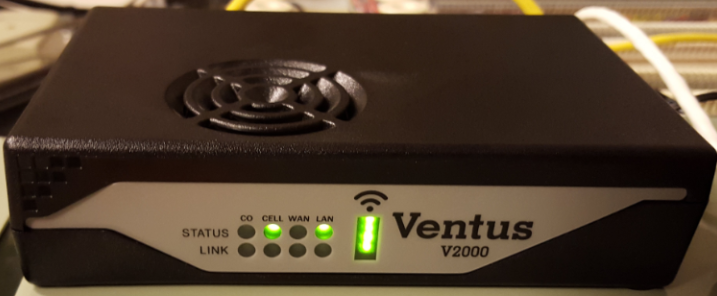
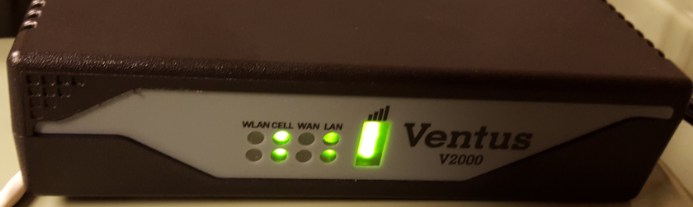
Ventus - Front
-
One status light and one link should always be green
-
Signal indicator lights show the signal strength, should be green
-
All four LED lights showing green indicate the best signal
-
No LED lights indicate no signal
Ventus- Back